Students and enrollment
Use People → Students in the learner's campus. Select the working academic cycle before admission. An account identifies a person. An enrollment records where that person studies. Changing a placement must retain the same account and enrollment.
Before you start
| Task | Required campus permission |
|---|---|
| Read student records | read student |
| Admit a learner | create student |
| Change identity, status, or placement | update student |
Prepare an active section in the working cycle. Draft sections do not appear in the admission form. Confirm available seats. Suspended enrollments and reserved admission offers also occupy seats. Use admissions when the intended section is full.
Admit a learner
Review the learner identity and placement after enrollment.
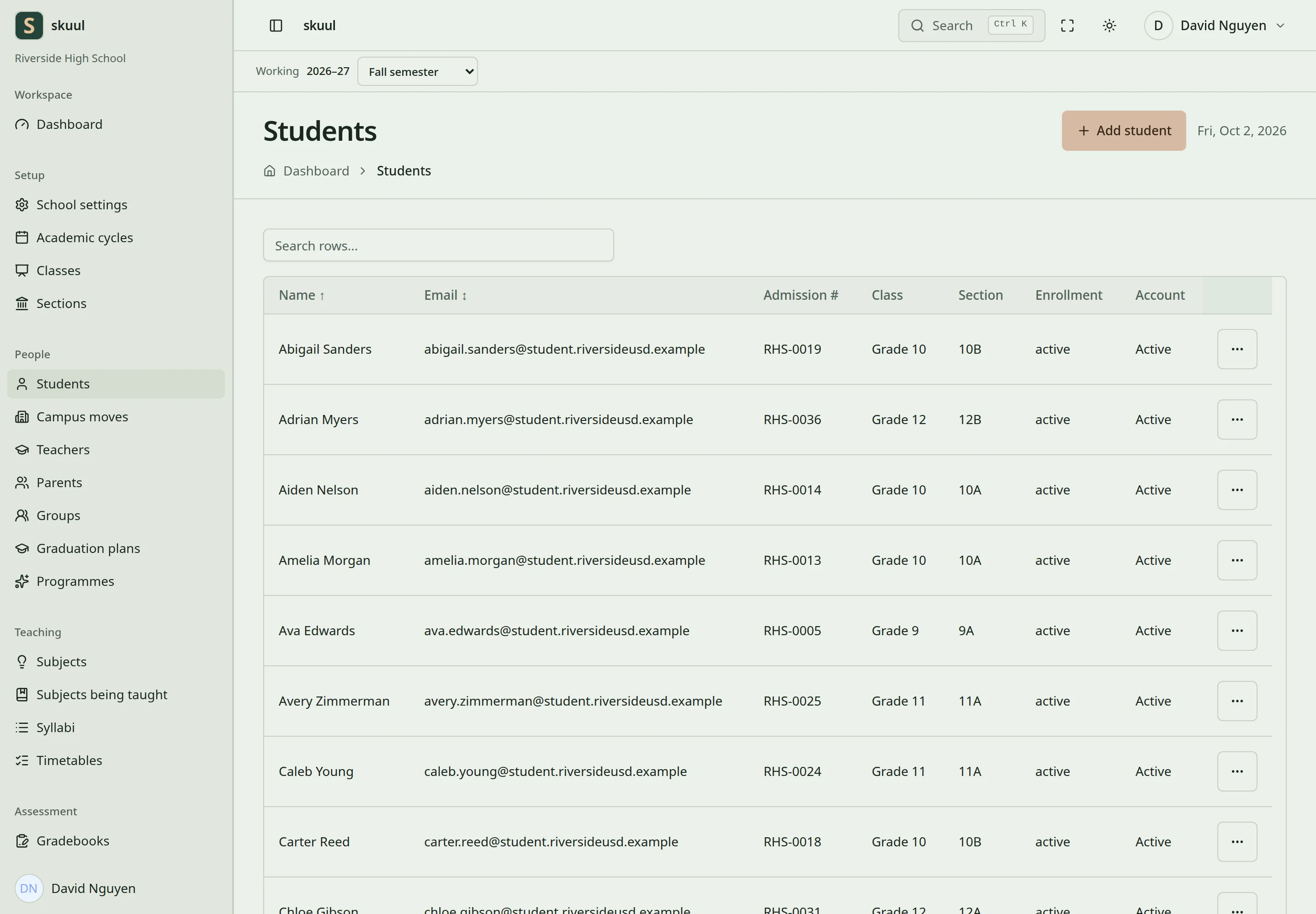
The student list. Open Create student from here.
- Open the student creation page from Students.
- Enter the learner's name and email address.
- Complete the required and optional fields below.
- Select the section shown with its academic level.
- Select Admit learner.
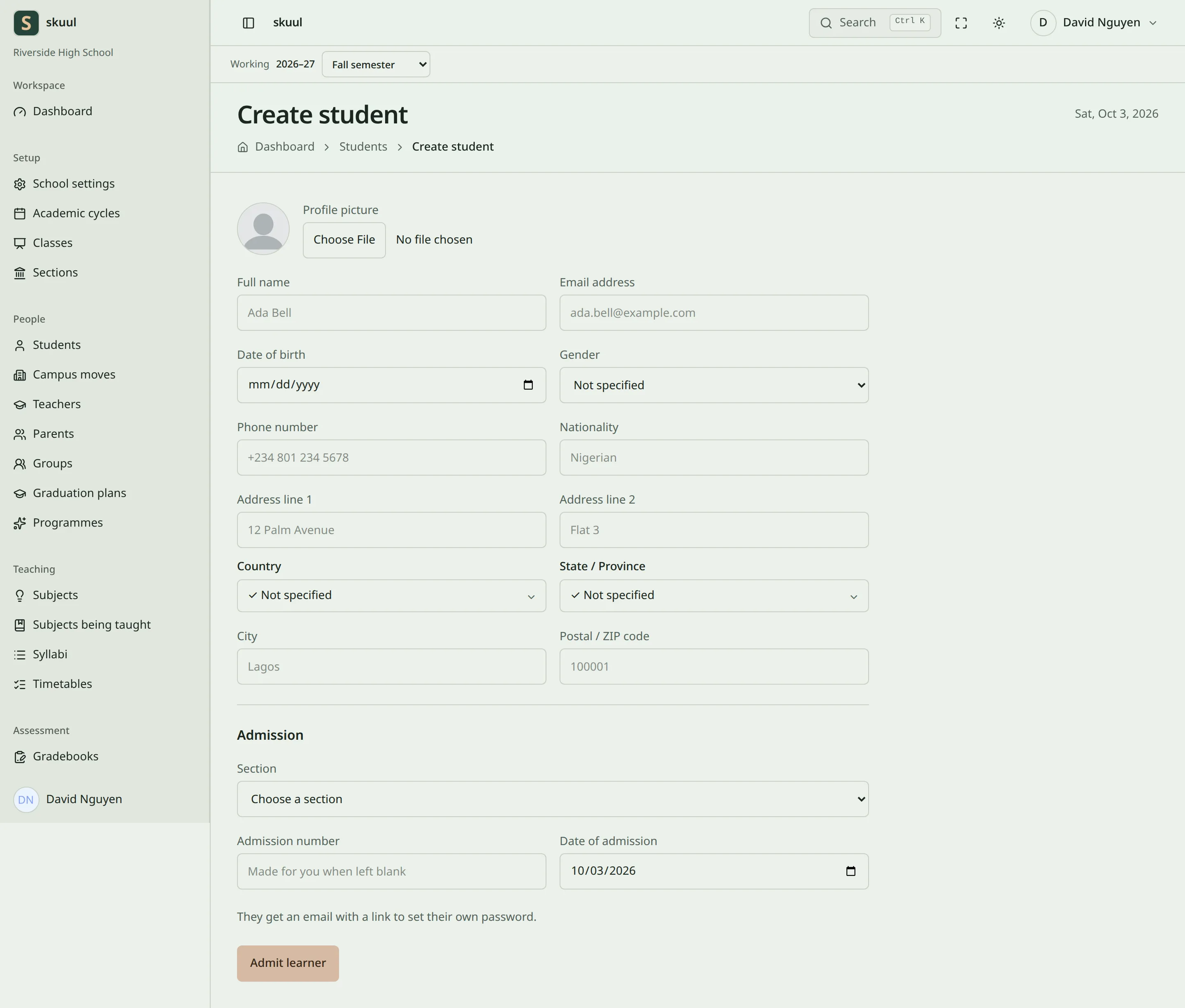
The admission form. Section is the only admission field you must choose. The admission number is made for you when left blank.
- Open the resulting profile and review its Enrollment section.
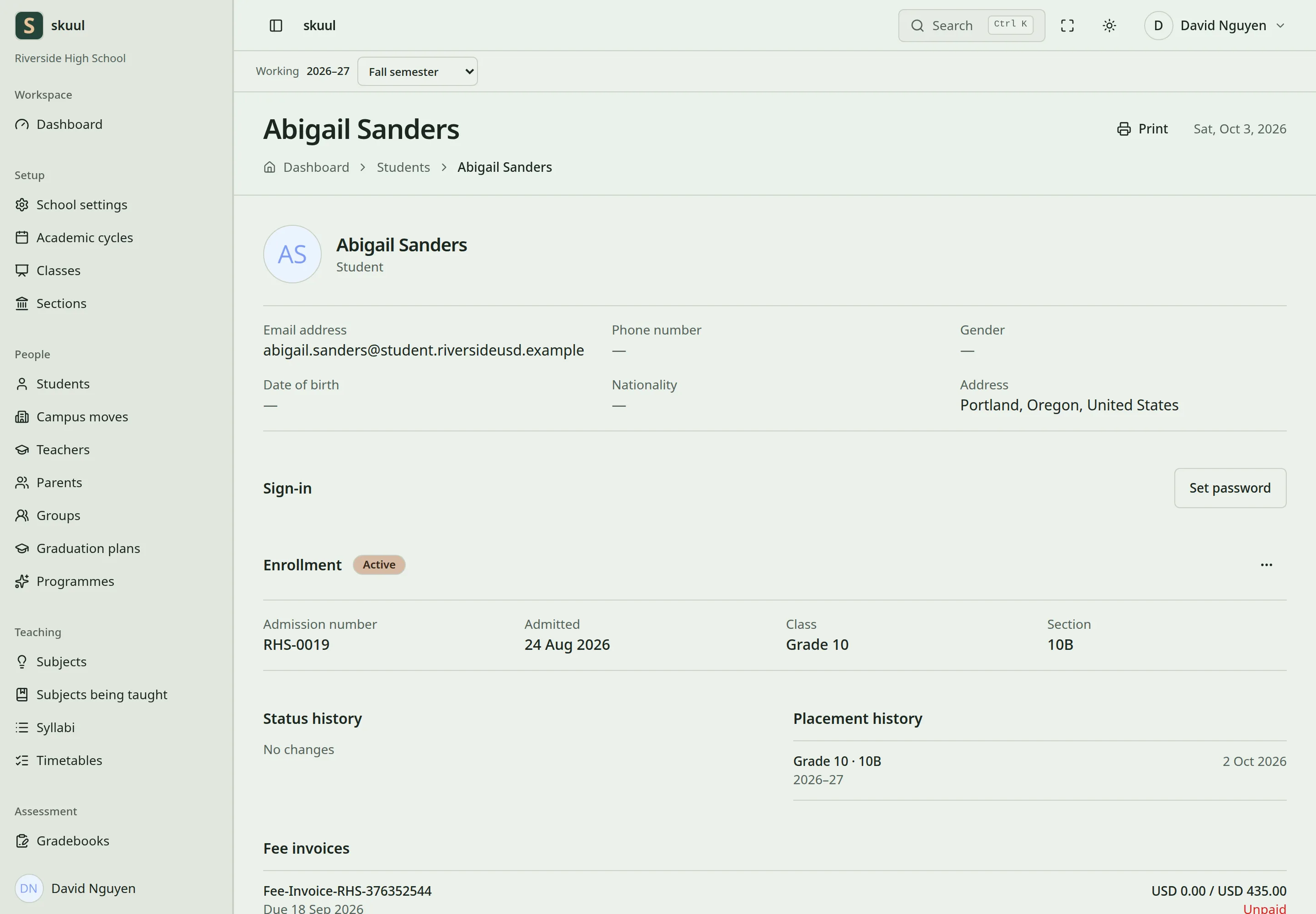
The Enrollment section of the profile. The ellipsis on its right opens Change the enrollment.
| Field | Requirement |
|---|---|
| Name | Required. Maximum 100 characters. |
| Required. Valid email format and mail-domain DNS. Maximum 100 characters. | |
| Birthday | Optional in this form. Use a date before today. The CSV import requires it. |
| Gender | Optional. Male, Female, Non-binary, or Prefer not to say. |
| Section | Required. Active section in the working campus and cycle. |
| Admission number | Optional. Unique within the campus. Leave blank for automatic generation. |
| Admission date | Required. Defaults to campus today. Future dates fail. |
| Photo | Optional. JPG, JPEG, or PNG. Maximum 3000 KB. |
| Phone | Optional. Maximum 100 characters. |
| Address and second address line | Optional. Maximum 255 characters each. |
| City, state, country, nationality | Optional. Maximum 100 characters each. |
| Postal code | Optional. Maximum 30 characters. |
Enter an existing person's email to reuse an eligible account known to the organization. The form has no separate account picker. An enrolled learner or an incompatible staff account fails admission checks. Use campus moves for a learner who already attends another campus.
A new account receives an email link to set a password automatically. An eligible reused account keeps its existing password. Do not send another invitation unless the first link requires replacement.
Change a placement
- Open the learner's profile.
- Open the ellipsis beside Enrollment, labelled Change the enrollment.
- Select Change placement.
- Select the destination section in the working cycle.
- Enter the effective date, using today or an earlier valid date.
- Optionally enter the reason in Why (optional).
- Select Save placement.
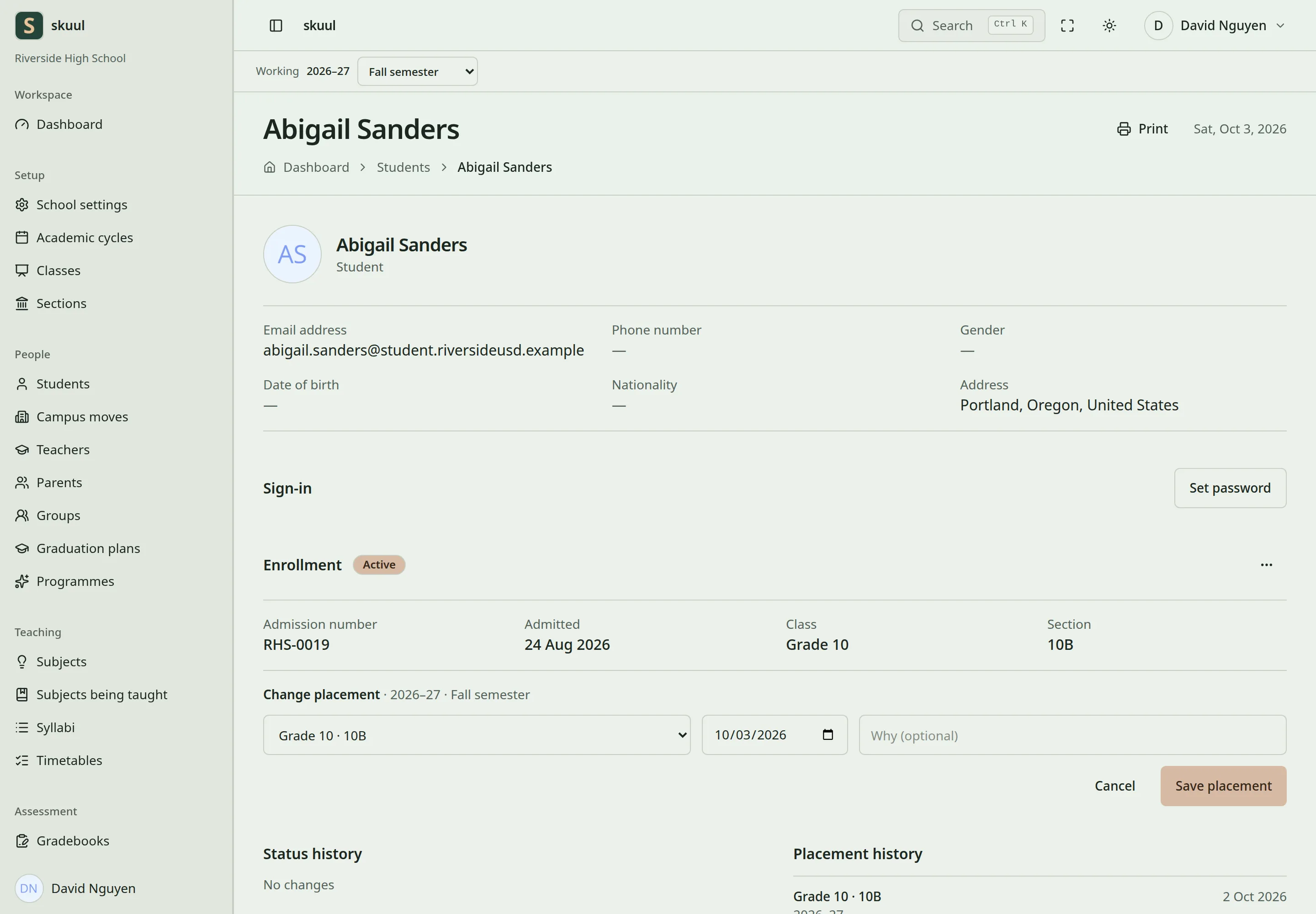
The placement form opens inside the Enrollment section. 8. Reload the profile and check the destination section and placement history.
The reason accepts up to 1000 characters. The application records a dated placement; editing identity details does not change placement. Withdrawn, Transferred, Graduated, and Archived enrollments reject ordinary placement changes.
Change enrollment status
Open the same menu and select Change status. Choose the new status, the effective date, and an optional reason. Select Save status. The list only offers permitted transitions.
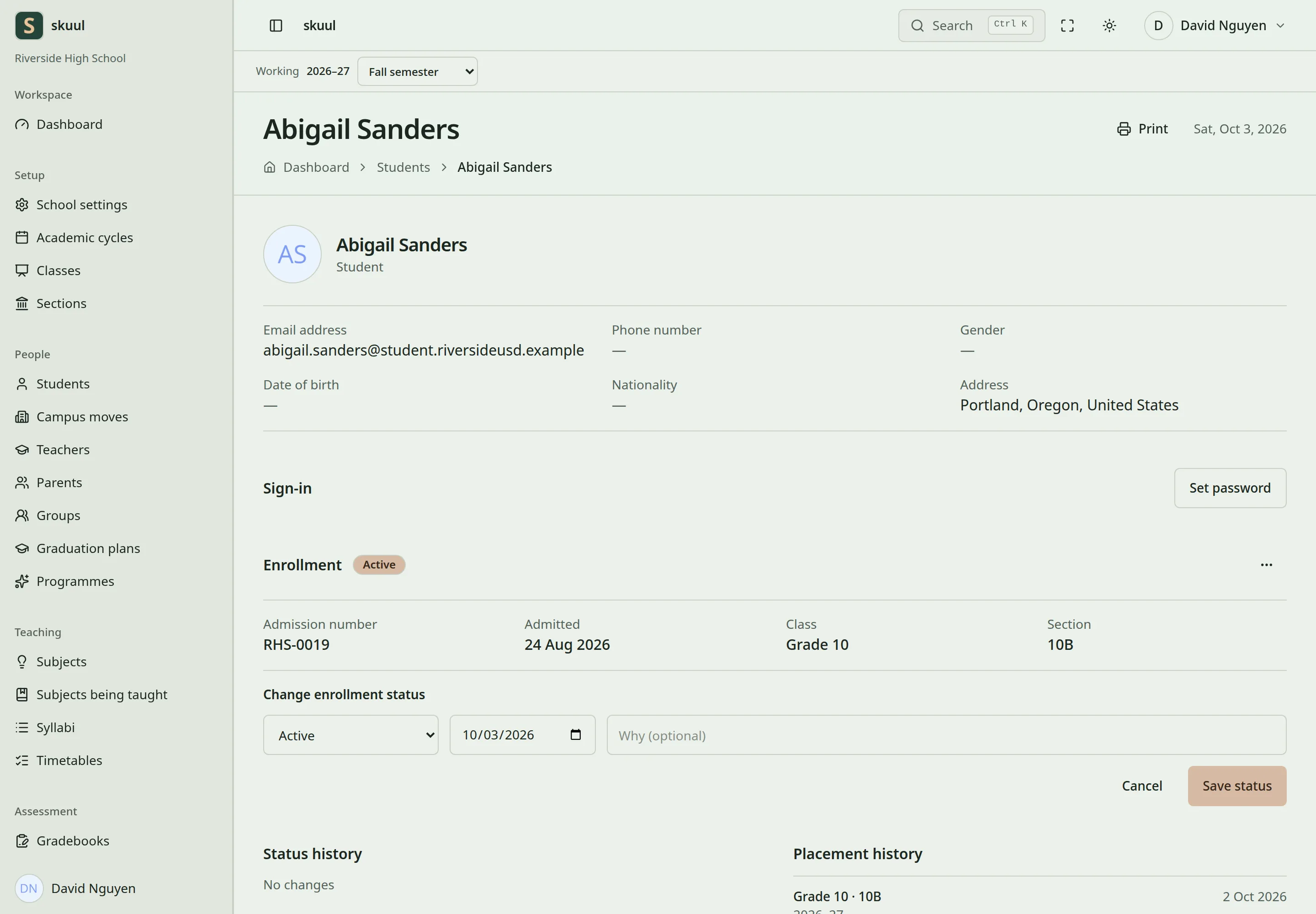
The status form opens inside the Enrollment section.
| Current status | Available next statuses |
|---|---|
| Active | Suspended, Withdrawn, Transferred, Graduated, Archived |
| Suspended | Active, Withdrawn, Transferred, Archived |
| Withdrawn | Active, Archived |
| Transferred | Archived |
| Graduated | Active, Archived |
| Archived | None |
Active means attending. Suspended means still enrolled but temporarily not attending. Reactivation checks other enrollments, staff status, and available capacity. Account suspension is separate and affects sign-in; enrollment suspension does not perform that account action. A status change to Transferred does not itself create a destination enrollment. Use the documented move operation when changing campus ownership.
Resolve a blocked admission or change
| Problem | Action |
|---|---|
| No sections appear | Select the correct cycle. Activate a section in that cycle. |
| Section is full | Review suspended learners and reserved offers. Use the admission queue. |
| Email validation fails | Correct the address and use a domain with working mail DNS. |
| Admission number exists | Open the existing learner. Correct the number only when it belongs to another person. |
| Learner already enrolled elsewhere | Request a campus move. Do not create another identity. |
| Profile moved while this page was open | Reload and work in the receiving campus. |
| Change placement is missing from the menu | The enrollment is Withdrawn, Transferred, Graduated, or Archived. Reactivate it first, where the status table allows. |
| The Change the enrollment menu is missing | The enrollment is Archived, so no change is possible. |
After admission, link guardians and verify family access.