Exam schedules
Use Assessment → Exam schedules. Select the campus, academic cycle, and relevant period. You need exam read or management permission.
Plan an exam
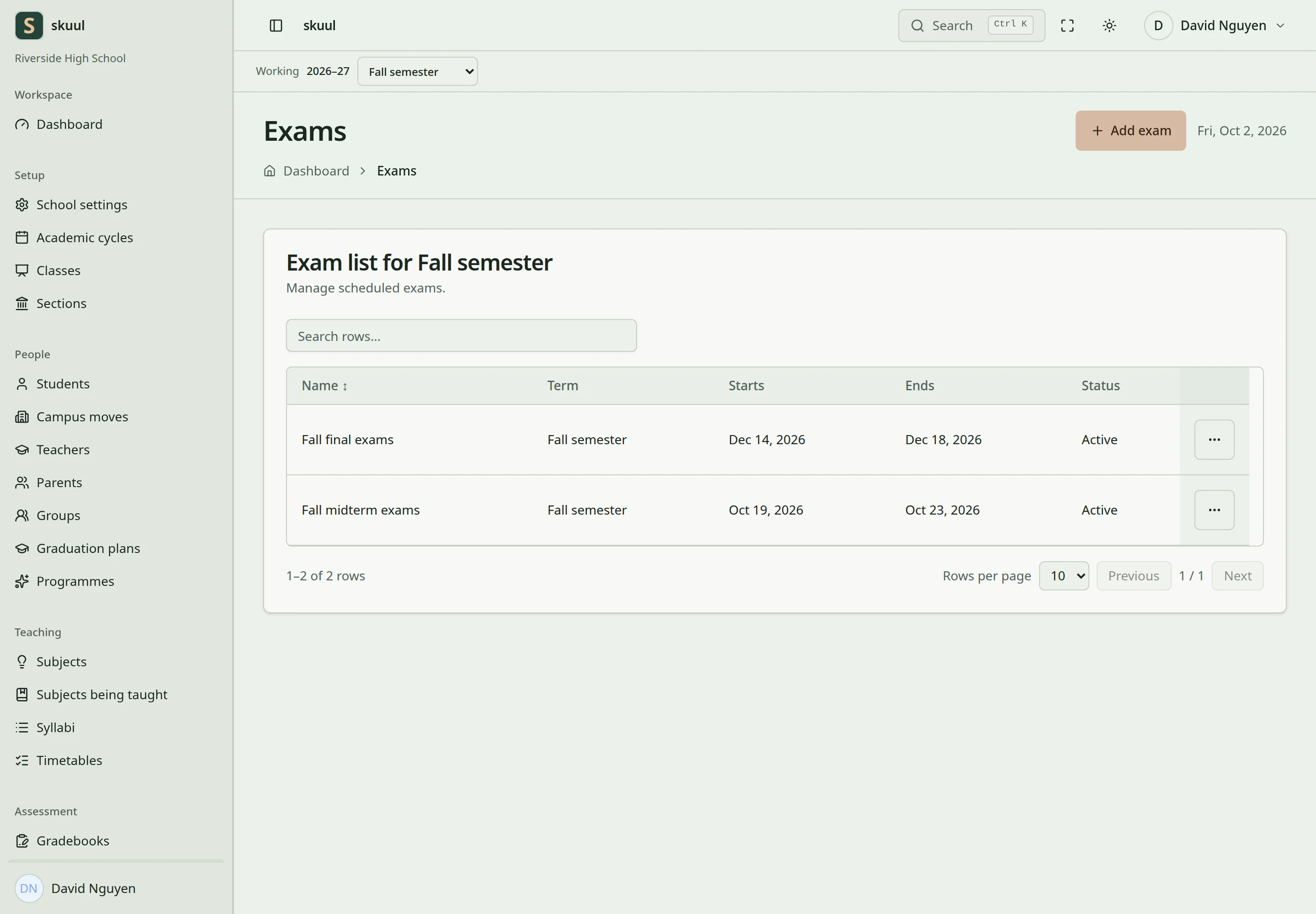
Exam dates describe the assessment window.
- Create an exam with a clear name.
- Select its academic period.
- Enter the description, start date, and end date.
- Check that both dates fit within the period.
- Save and review the exam schedule.
The end date cannot precede the start date. The exam name must be unique in its required context, ignoring letter case. Draft periods can support planning. Closing or finished teaching context restricts further changes.
The exam record describes the planned assessment window. Record marks in the relevant course offering's gradebook. Use gradebook categories and items to define assessment weighting. The current application does not use the old V2 exam-mark workflow.
Review readiness
Check the published syllabus and its assessment plan. Review outstanding topic coverage. Check teaching schedules, closure days, and room availability separately. A valid exam date range does not by itself prove that every lesson or room allocation is conflict-free.
After marking, submit the result revisions for approval. Families see approved results through the results portal area.
Enter and correct the schedule
Use read exam, create exam, and update exam for the corresponding tasks. The selected academic period must belong to the exam's cycle.
- Open exam creation from the selected cycle or exam list.
- Enter the name and optional description.
- Select the reporting period.
- Enter the start and end dates inside that period.
- Select Plan the exam.
- Open the saved exam and verify its interval and period.
Name accepts up to 255 characters. Use the edit form to correct the name, dates, or period within the same year. Review both old and new teaching contexts before moving an exam between periods. Do not enter grades into an exam schedule; create the gradebook assessment items separately.
| Problem | Action |
|---|---|
| No reporting period appears | Create the dated cycle's periods in the working campus. |
| Name is rejected | Check for an exam with the same name in its context, ignoring case. |
| Date is rejected | Keep both exam dates inside the selected period and use an ordered interval. |
| Edit is blocked | Check period state and update exam. |
Check the result
- Check the exam start and end dates against the selected period.
- Confirm assessment items and marking remain in the relevant gradebook.
See gradebooks, syllabi, and result approval.