Subjects, course offerings, and teachers
Use Teaching → Subjects for the campus subject catalogue. Use the teaching-offering list to define who studies each subject. The menu label can follow the campus terminology profile.
Create an offering
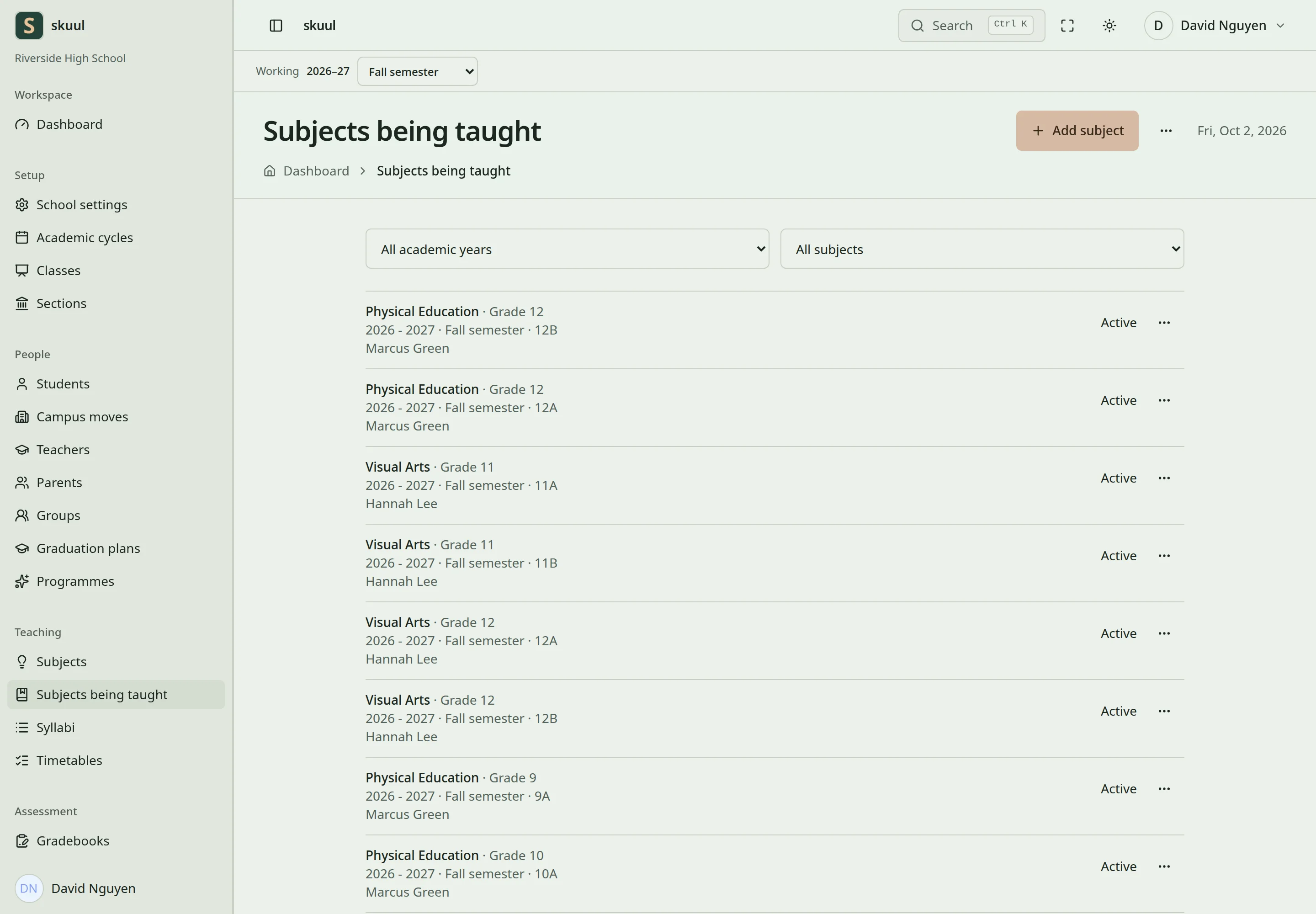
An offering defines the teaching context and learner roster.
- Select the campus and academic cycle.
- Choose the subject and applicable period.
- Select the academic level and roster method.
- Select sections or individual learners where that method requires them.
- Review the resolved learner roster.
- Activate the offering when the period and roster are ready.
A subject alone does not establish a class roster. An offering combines the subject, teaching context, and roster. Gradebooks and syllabi use this offering. Activation checks the period, valid roster, and duplicate active offerings. Named learners must attend the selected campus and level. The roster method must match the cycle's teaching model or an allowed exception.
Assign teaching responsibility
Open the offering's teaching assignments. Choose an active campus teacher and their lead or supporting responsibility. When assigning a section, select one included in the offering. An inactive campus account or an unrelated section cannot receive that assignment. A closed cycle prevents assignment changes.
A teacher's account role and teaching assignment are separate. Give the teacher the required campus role, then assign the offerings they teach. A staff employment record alone does not assign subjects.
Change or retire an offering
Review the roster before making changes. Existing class ownership cannot be changed through a normal roster update. Archived offerings are retained and cannot accept ordinary changes. Do not replace an offering to hide its previous grades or published results.
Complete the offering form
Reading offerings requires read subject; adding them requires create subject. Updating rosters and teaching assignments requires update subject. These permissions do not replace an active campus membership.
- Select Subject, School year, and Class, using the campus's terms.
- Select the academic period, or all periods when that option is appropriate.
- Select Who attends.
- Select the required sections or learners.
- Enter optional Periods a week and Capacity.
- Select Add subject.
- Open the offering directory and select Activate for the intended draft.
Periods a week accepts integers from 1 to 80. Offering capacity accepts integers from 1 to 5000. The academic period must belong to the selected year. When setting up a subject across levels, check each level's separate roster configuration. Selecting all periods creates the intended period-specific setup; review the resulting rows.
Assign a teacher and correct a roster
In the offering directory, select Add teacher. Choose Teacher and Role, then confirm Add teacher. Select Edit roster to change Who attends and its selected sections or learners. Select Save roster, then open Gradebook and verify its resolved learners.
| Problem | Action |
|---|---|
| Subject catalogue exists but gradebook roster is empty | Create and activate the offering with an eligible roster. |
| Teacher cannot edit marks | Check gradebook permission and the unended teaching assignment. |
| Activation is refused | Review period status, roster eligibility, and duplicate active offerings. |
| Named learner is rejected | Check active attendance in the offering's campus and level. |
Check the result
- Review the resolved roster before activation.
- Check the responsible teacher and included sections.
- Confirm the gradebook uses that offering.
See gradebooks, syllabi, and teaching models.