Financial periods, expenses, deposits, and budgets
Select the campus before you work with finance records. Each campus keeps its own ledger.
| Task | Campus permission |
|---|---|
| Add, close, or reopen a financial period | manage financial period |
| See the financial periods | read fee invoice |
| Read or record expenses | read expense, create expense |
| Read or record cash deposits | read cash deposit, create cash deposit |
| Read budgets | read budget |
| Save, revise, or remove a plan | manage budget |
Control financial posting
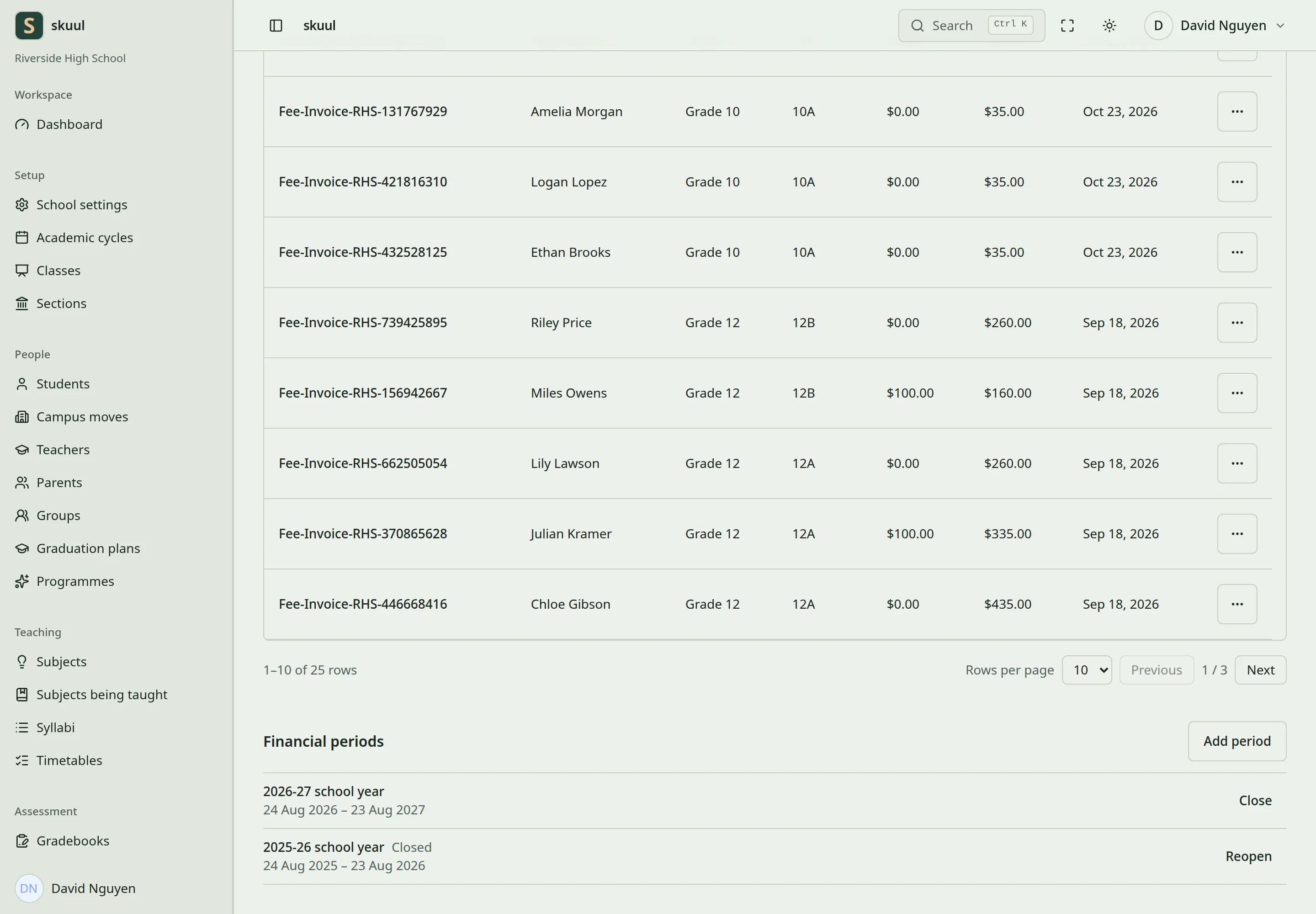
Open Finance → Fee invoices. Financial periods is below the invoices. A financial period controls posting. It does not control teaching.
- Select Add period.
- Enter Name, Starts on, and Ends on.
- Select Add period.
| Field | Requirement |
|---|---|
| Name | Required. Unique in the campus. Up to 100 characters. |
| Starts on | Required. Must not overlap another period of the campus. |
| Ends on | Required. On or after Starts on. |
Each date can belong to one period only. A period can start the day after another period ends. If the dates overlap, the form names the other period and its dates.
Every money entry needs an open period that covers its date. Select Close on a row to stop new entries in that period. Read the confirmation, then confirm. Select Reopen to allow entries again. The app records each close and reopen in the audit log.
Closing a period does not change earlier invoices and payments. Closing a school year does not close its financial period. Posted entries stay in the ledger. Corrections use new entries or reversals. Each entry balances its debits and credits within one campus.
Record an expense
- On the Finance page, open the ellipsis (More finance pages).
- Select Record expense.
- Enter What was bought, Amount, and Date.
- In Spent on, select the expense account.
- In Paid from, select how the money left.
- Enter Reference when the method needs one.
- Enter the optional Who was paid, Programme, Fund or grant, and Note.
- Select Record expense.
| Field | Requirement |
|---|---|
| What was bought | Required. Up to 255 characters. |
| Amount | More than 0, up to 1000000000, with up to two decimal places. |
| Date | Today or earlier. An open financial period must cover it. |
| Spent on | An active expense account of this campus. |
| Reference | Required for every method except Cash. Up to 100 characters. |
| Who was paid | Optional. Up to 150 characters. |
| Fund or grant | Optional. Up to 60 characters. |
| Note | Optional. Up to 2000 characters. |
If the amount is more than the books show in the paying account, the form stops. It names the balance. Check the amount. If the amount is right, select This amount is right, then Record expense again.
To see expenses, select Expenses in More finance pages.
Deposit cash into the bank
- In More finance pages, select Cash deposits.
- Select Record cash deposit.
- Enter Amount and Date.
- Enter the optional Bank reference and Note.
- Select Record deposit.
A deposit moves money from cash to the bank. It is not new fee income. If the amount is more than the cash box holds in the books, the form stops and names the balance. Count the cash. If the amount is right, select The cash was counted and this amount is right, then Record deposit again. The opening cash balance can be incomplete, so the app allows this.
Set and review a budget
- Open Finance → Budgets.
- Select Cycle.
- Under Write or revise a plan, select Account and enter Amount.
- In Covers, keep The whole year or select a term.
- Enter the optional Programme, Fund, and Note.
- Select Save the plan.
The amount is from 0 to 1000000000, with up to two decimal places. To change a plan, open its ellipsis and select Revise. To delete a plan, select Remove, then confirm. The actual spending stays in the ledger. Use the Budget variance report to compare plan and actual amounts.
Review accounts
Open the reports for the campus: General ledger, Trial balance, Income statement, Balance sheet, and Budget variance. Use Student balances for what learners owe and how old it is.
A campus move carries debt or credit only within a shared billing group. The old campus keeps its ledger and the invoices that the learner left behind. See campus moves.
Problems
| Problem | Action |
|---|---|
| The date is refused | An open financial period must cover it. Check Financial periods. |
| The new period is refused | Its dates overlap another period. Start it the day after that period ends. |
| A closed period still has open dates | Each date belongs to one period. A closed period stops entries on all its dates. |
| The expense account is refused | Select an active expense account of this campus. |
| The deposit shows as income | It should not. Check the posting in the general ledger. |
| The budget variance looks wrong | Check the account, cycle, term, programme, and fund of the plan. |
Follow finance reconciliation before you close a financial period.