Report exports
Use Operations → Reports. You need report access and the permission for the report's underlying data. Select the campus before requesting an export.
Build an export
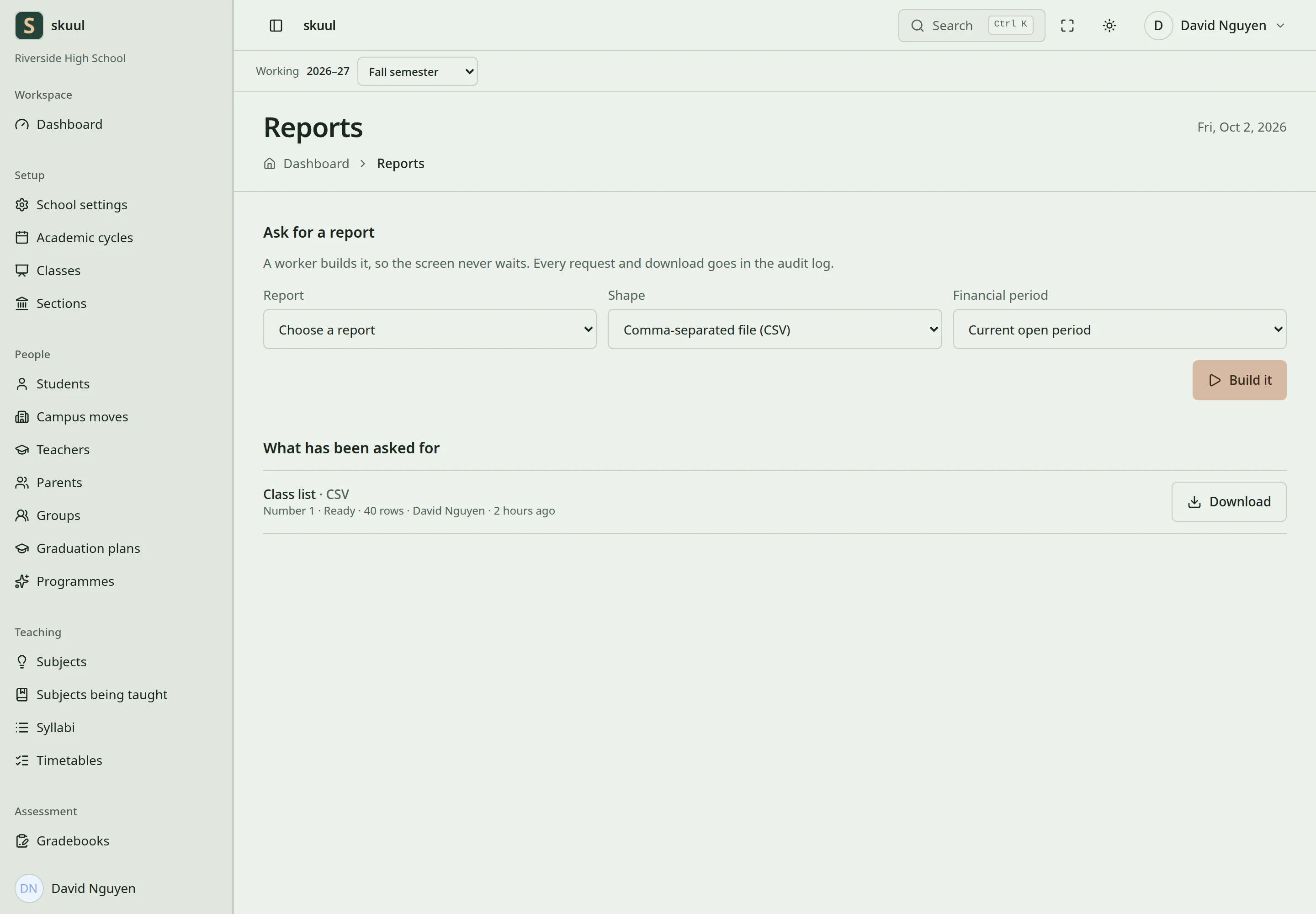
Download a report after the build reaches Ready.
- Choose the report type.
- Select the financial period when applicable.
- Choose CSV, XLSX, or PDF.
- Submit the request.
- Wait for the request to become Ready.
- Download the file from the report record.
Statuses are Queued, Building, Ready, and Failed. The queue worker builds the export. The download checks authorization again; knowing a report identifier does not grant access. A failed request needs its error checked before retrying. An export reflects the data used for that build. Rebuild it after relevant records change.
Available reports
| Report key | Report | Required data permission |
|---|---|---|
student-balances | Student balances | Read fee invoice |
student-aging | Student balances by age | Read fee invoice |
income-by-fee-type | Income by fee type | Read fee invoice |
expenses | Expenses | Read expense |
cash-and-bank | Cash and bank summary | Read cash deposit |
general-ledger | General ledger | Read financial period |
trial-balance | Trial balance | Read financial period |
income-statement | Income statement | Read financial period |
balance-sheet | Balance sheet | Read financial period |
budget-variance | Budget variance | Read budget |
class-list | Class list | Read student |
report-cards | Report cards | Read report |
transcripts | Transcripts | Read report |
Report-card and transcript exports use their published academic records. Publishing an official document is a separate workflow.
Use the report desk controls
The directory requires read report; requesting an export also requires create report. The report's underlying data permission is an additional requirement.
- Select Report in Ask for a report.
- Select Shape: CSV, XLSX, or PDF.
- Select Financial period where that filter applies.
- Select Build it and note the reported request number.
- Find that number under What has been asked for.
- Wait for Ready, then select Download.
The current form exposes report, format, and financial-period controls. It does not provide a general cycle, learner, date-range, or class filter editor. Report-specific scope also comes from the report implementation and current campus. Inspect downloaded headings and sample rows before sharing the file. The live application state at build time supplies the data; the request is not an immediate frozen snapshot.
| Problem | Action |
|---|---|
| Desired report is absent | Check its data permission in the table above. |
| Build control is absent | Check create report and whether any permitted report exists. |
| Request remains Queued | Ask the operator to check the configured queue worker. |
| Request becomes Failed | Read the recorded error and correct its cause before requesting another build. |
| Download is refused | Recheck current authorization and campus; access is checked again at download. |
| Result still contains old data | Request a fresh export after the underlying correction. |
Understand dates and learner selection
A Financial period selection does not apply the same filter to every report. Read the report definition before comparing its totals with another export.
| Report | Date and selection behavior |
|---|---|
| General ledger, Trial balance, Income statement | Ledger transactions within the selected financial window. |
| Cash and bank | Opening before the window, movements within it, and resulting Closing. |
| Balance sheet | Cumulative ledger values through the ending date. |
| Expenses | Expense records within the financial window. |
| Income by fee type | Invoice lines selected by invoice issue date, with current allocations and balances. |
| Student balances | Current learner ledger balance and unapplied credit; no historical period balance. |
| Student balances by age | Current invoice balances, aged at build time by default. Financial period does not filter those balances. |
| Budget variance | Budget comparison for the request's academic cycle. |
For window-based reports, a selected financial period supplies the start and end dates. Without it, the report uses the request's academic cycle dates where available. The report desk does not expose a general date-range or learner-status filter.
Student balances lists every Active learner of the campus. It also lists a learner of any other status, or one who moved away, who owes money or holds credit here. Student balances by age lists each learner who still owes on an invoice of this campus. Student balances by age uses current invoice balances, rather than reconstructing a historical balance at its aging date. Income by fee type's Collected column reflects allocations to the selected invoice lines. It does not mean cash received during the selected window.
Use finance reconciliation to compare cash, bank, learner balances, and period closure. Use service recovery when an export remains Queued or Failed.
Check the result
- Check that the report reached Ready and reports the expected row count.
- Open the download and review its campus, dates, headings, and sample rows.
- Verify access with the intended requesting role.
See official documents and finance.