Boarding houses, rolls, and nights away
Enable Boarding before using Boarding → Houses or Nights away. Select the campus, cycle, and period where required. You need boarding permissions for the operation.
Prepare boarding places
- Create the boarding house.
- Add rooms and beds.
- Set each room's availability.
- Assign eligible campus staff as supervisors.
- Select an eligible learner and available bed.
- Save the placement and check the occupancy list.
An occupied or unavailable bed cannot receive another learner. The bed and enrollment must be valid for the campus. Room and house closure checks prevent leaving current boarders in unavailable places. Ending or moving a placement keeps its history. A campus move or departure releases the learner's bed. Suspension does not automatically release it.
Use an organization residence
Create the shared residence through the organization boarding-residence page. Link its campuses, then attach their houses. All links must belong to the same organization and residence. A campus cannot be unlinked while houses still depend on that link. Shared residence configuration does not grant unrestricted access to other campuses.
Take a roll
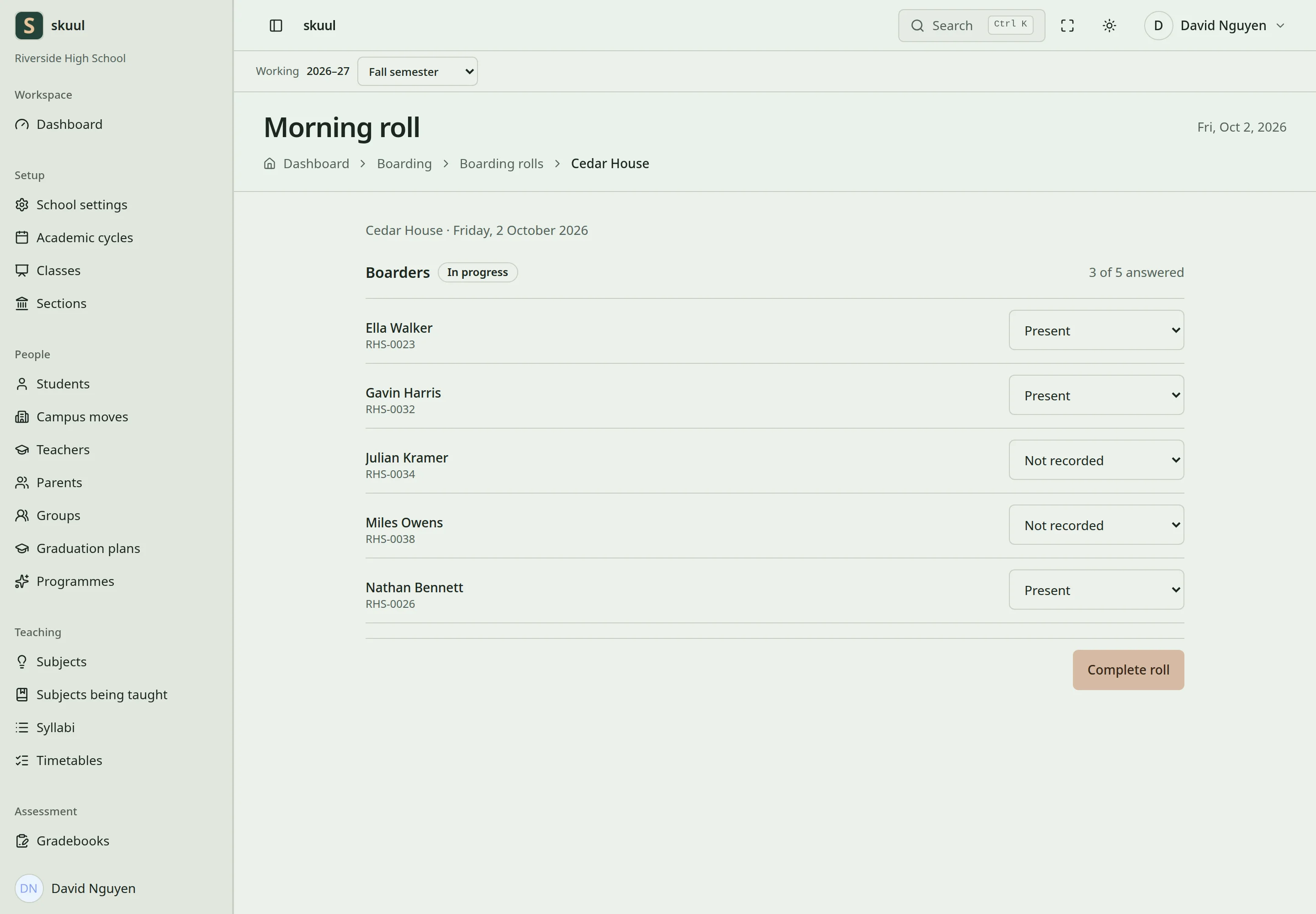
Complete the roll after recording every required entry.
Open the house's boarding roll workflow. Select the date and roll type, then start the roll for its boarders. Record each learner's state and review missing entries. Complete the roll only when all required entries are recorded. A completed roll is read-only.
Process nights away
Select a current boarder and enter the departure and return dates. Dates cannot overlap another applicable leave request. Review the request, then approve or refuse it with the required authority. States are Requested, Approved, Refused, Cancelled, and Returned. Record the learner's return through the leave workflow. Ending boarding can cancel leave that has not begun.
Families see eligible placements and leave through the Boarding portal area.
Enter houses and bed placements
Read boarding with read boarding; change houses and placements with manage boarding. Deciding nights away requires the separate decide overnight leave permission.
Enter house Name, What this school calls it, Rooms, and Beds in each room. Select Open the house. Initial room count accepts 1 to 200; beds per room accepts 1 to 40. At the house record, use Add room and Add bed to extend the stock. Select Learner, Bed, and optional Note, then select Give the bed. Check that the learner occupies exactly the intended bed. Use End placement with Why they are leaving to release a place. The reason requires 3 to 255 characters.
Finish a roll and record a night away
On the roll sheet, enter each boarder's status, optional location, and note. Location accepts 150 characters; note accepts 1000. Select Save, then Complete roll when every required entry is present. Put back discards unsaved roll edits. A completed roll rejects further edits.
For nights away, enter Boarder, Leaves on, Comes back on, and Where they are going. Add the optional contact and reason, then select Ask for the night away. The return date must be on or after departure. Destination accepts 150 characters; contact accepts 100; reason accepts 1000. The reviewer selects Approve or Refuse with a reason for refusal. Select Back in after the learner returns. Use Call off to cancel an eligible request.
| Problem | Action |
|---|---|
| Bed is rejected | Check occupancy, bed status, room availability, and learner eligibility. |
| Roll cannot complete | Record every required boarder entry first. |
| Leave overlaps another request | Resolve the existing applicable nights-away interval. |
| Suspension has not freed a bed | End the boarding placement explicitly when the learner must leave it. |
Check the result
- Check bed occupancy and placement history.
- Confirm the completed roll has no required unrecorded entries.
- Check the decision and return state of a nights-away request.
See student status and campus moves.