Organizations and domains
Use Organization → Organizations to manage organizations. You need organization access and the permission for the operation. Platform administrators can manage the platform scope.
Set up an organization
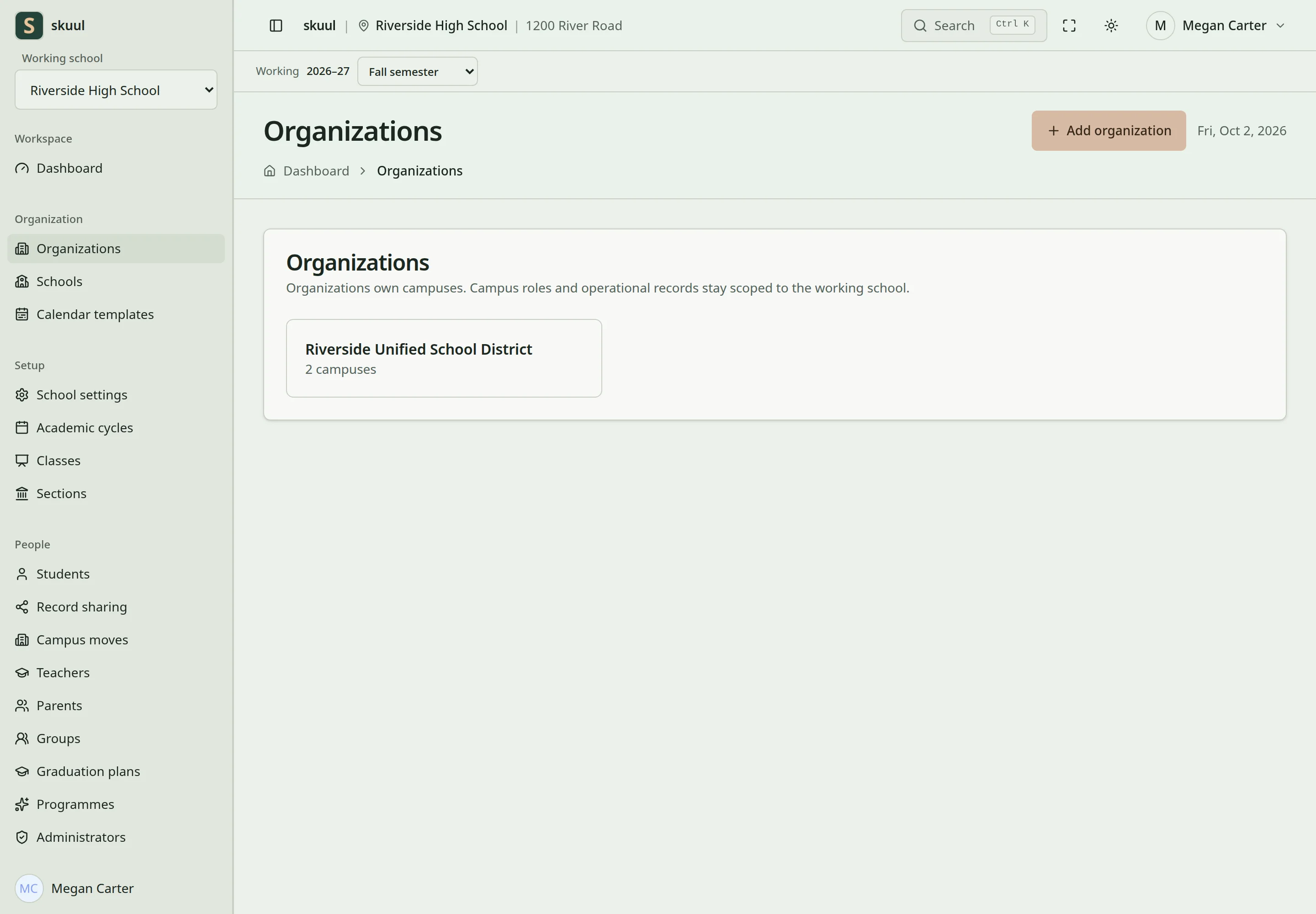
Organization ownership and campus access are separate.
- Create the organization and enter its details.
- Create or attach its campuses.
- Add organization members.
- Set each member's organization role and allowed operations.
- Open the organization dashboard to review its campuses.
Organization membership and campus membership are separate. Give operational staff access to each campus where they must work. An organization member's permission list can restrict organization actions. Removing or suspending that membership removes its organization authority.
Add a custom domain
- Add the hostname to the organization's domain list.
- Select a campus if the hostname must open a particular campus.
- Copy the verification token shown by the application.
- Add a DNS TXT record at
_skuul-verification.<hostname>with that token. - Run the domain verification action after DNS propagation.
- Configure the web server, routing, and HTTPS for the hostname.
Skuul uses verified domains to resolve the organization context. An unverified domain does not establish that context. Domain verification does not create an HTTPS certificate or grant record access. Enter a hostname without a path. The application normalizes case, ports, and trailing dots.
Set up billing groups
Create a billing group within the organization. Assign campuses that should carry learner balances during campus moves. A group must contain only campuses from its own organization. Changing a group's membership does not move existing ledger entries. An empty group can be removed.
Enter organization and membership details
Enter Name, optional Code, contact details, and address, then select Create the organization. Name accepts 255 characters. Code accepts up to 50 letters, numbers, dashes, and underscores and must be unique. When editing, Code is required. Select Save after changes.
On the member page, enter the known person's email and select Give scope. Open Permissions to review and restrict organization authority, then select Save permissions. A stored null permission list means full organization authority; an explicit list limits it. The person also needs the active organization membership and global organization-admin role. Use Remove scope and Confirm removal to revoke organization authority. Their existing campus memberships remain separate.
Verify an address and configure balance sharing
On Addresses, enter Address, select Opens, and select Claim it. Create the displayed DNS TXT record, then select Prove it after propagation. Use Give it up to remove the domain mapping when it is no longer authorized. On billing groups, enter Name of the new group and select Start a group. Assign the intended same-organization campuses before planning a balance-carrying move. Changing a billing group does not migrate existing entries.
| Problem | Action |
|---|---|
| Organization admin cannot operate a campus | Grant the required active campus membership and campus permissions. |
| Domain proof fails | Check the exact TXT hostname, token, and authoritative DNS propagation. |
| Verified domain has no HTTPS | Configure web routing and certificates separately. |
| Balance did not carry during a move | Check whether both campuses belonged to the same billing group. |
Check the result
- Confirm that each campus belongs to the intended organization.
- Check organization membership separately from campus membership.
See campus moves for approval and balance carry rules.