Promotion, graduation, and graduation plans
Prepare the destination sections before changing learner progression. You need promotion or graduation permission for the action.
Promote learners
- Select the working cycle and source section.
- Select a different destination section from that cycle.
- Review the proposed learner placements.
- Resolve capacity or eligibility problems.
- Confirm the promotion.
- Review the recorded promotion and placement history.
Promotion is an enrollment operation. Copying sections or offerings into another cycle does not promote learners. The current promotion form lists source and destination sections from the working cycle. It is not a complete next-cycle promotion wizard. Use the recorded promotion view to inspect what changed. The promotion list has a reset action for eligible learners who still occupy the recorded destination. Learners who have moved, left, or graduated are skipped. Do not duplicate learner accounts to begin another cycle.
Define graduation requirements
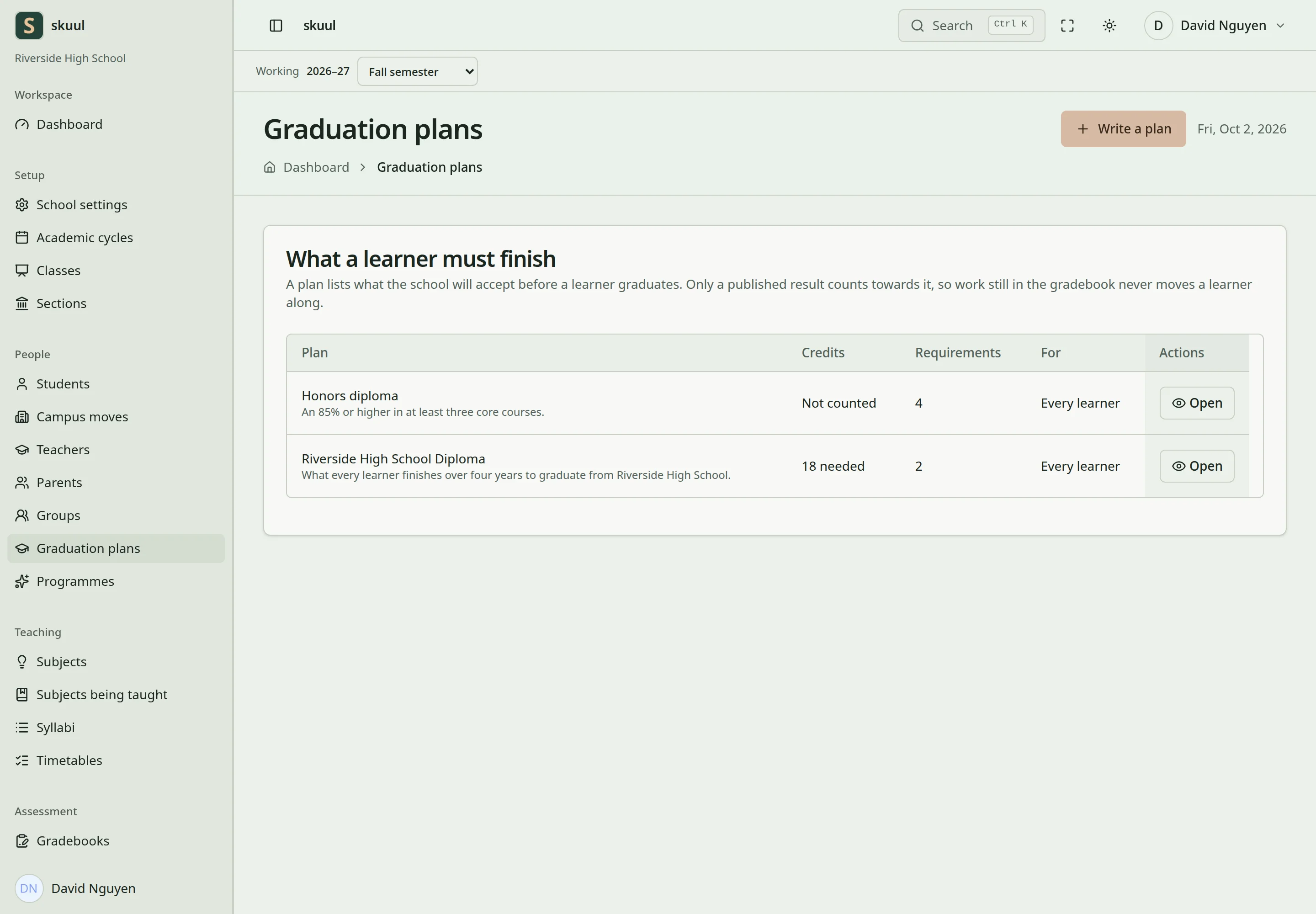
Graduation progress uses approved subject results.
Enable Graduation plans and open People → Graduation plans. Create a plan and add its subject requirements. Set pass marks, credit values, and required or optional conditions. Use nested stages when the programme needs separate requirement groups. Completion rules can require all, any, a minimum number, or a minimum credit total. Negated conditions express requirements that must not be met. Record authorized exemptions with their supporting reason.
Progress reads approved result snapshots, not unpublished gradebook marks. A requirement with no subject cannot be judged automatically from subject results. An empty plan does not report completion. Same-named subjects from a learner's earlier campus can contribute after a campus move. Review subject naming when evaluating transferred academic history.
Record graduation
Review the learner and applicable requirements before confirming graduation. The graduation workflow changes enrollment status and retains a graduation record. Plan completion alone does not replace that confirmation. Graduated learners cannot continue normal staff-style student operations. The current middleware can also redirect graduated student-role accounts away from portal routes. See the known limits before promising graduate portal access.
Use promotion and graduation controls
- Open promotion and select Current section and Destination section.
- Select Review learners.
- Select the intended learners and check their admission numbers.
- Select Move selected learners.
- Open the resulting promotion record and review both sections and learner names.
Both sections come from the working cycle. The destination must differ from the source. Use the promotion list's Reset promotion row action with reset promotion permission to reverse eligible placements. The details page itself has no reset button. Reset skips learners who no longer have the recorded destination placement or eligible enrollment state. Inspect each resulting placement after reset.
For graduation, select the section, then Review learners. Choose learners, enter an optional Note for the record, and select Graduate selected learners. The note accepts up to 255 characters. This action requires graduate student; plan completion alone does not perform graduation.
Configure a plan and review a worked requirement
Use read graduation plan to read and manage graduation plan to create or change plans. Enter Name, optional Who it is for, and the completion rule, then select Write the plan. Use Add stage for a nested class or pathway stage. For a requirement, enter Subject or requirement, optional Judged from, Pass mark %, and Credits. Select whether it is required or negated, then select Add this requirement. Pass marks accept 0 to 100; credits accept integers from 0 to 100.
Example: require Mathematics with a 50% pass mark and 3 credits. An approved result of 65% meets that subject requirement. A pending 65% result does not meet it through the result calculator. A requirement without a subject needs review rather than an invented calculated pass. Use Excuse with a learner and reason for an authorized exemption. Use Take the excusal back to remove the exemption while retaining its audit history.
| Problem | Action |
|---|---|
| Next-year destination is absent | The promotion form uses the working cycle; copying setup is a separate task. |
| Reset does not restore every learner | Check subsequent moves, departure, graduation, and current placement. |
| Plan shows incomplete despite entered marks | Check approved results, rule nesting, active stages, and exemptions. |
| Plan is complete but learner remains Active | Perform the graduation workflow after the required review. |
Check the result
- Review destination placements after promotion.
- Check plan progress against approved results and exemptions.
- Confirm graduation status through the graduation workflow.
See student enrollment and result approval.
Follow next-cycle handover for target-cycle setup and deliberate placement changes.