Optional features
Open the campus feature profile with school management access. Each switch saves when you change it. A disabled feature removes its menu entries and blocks its routes and writes. Existing records remain stored.
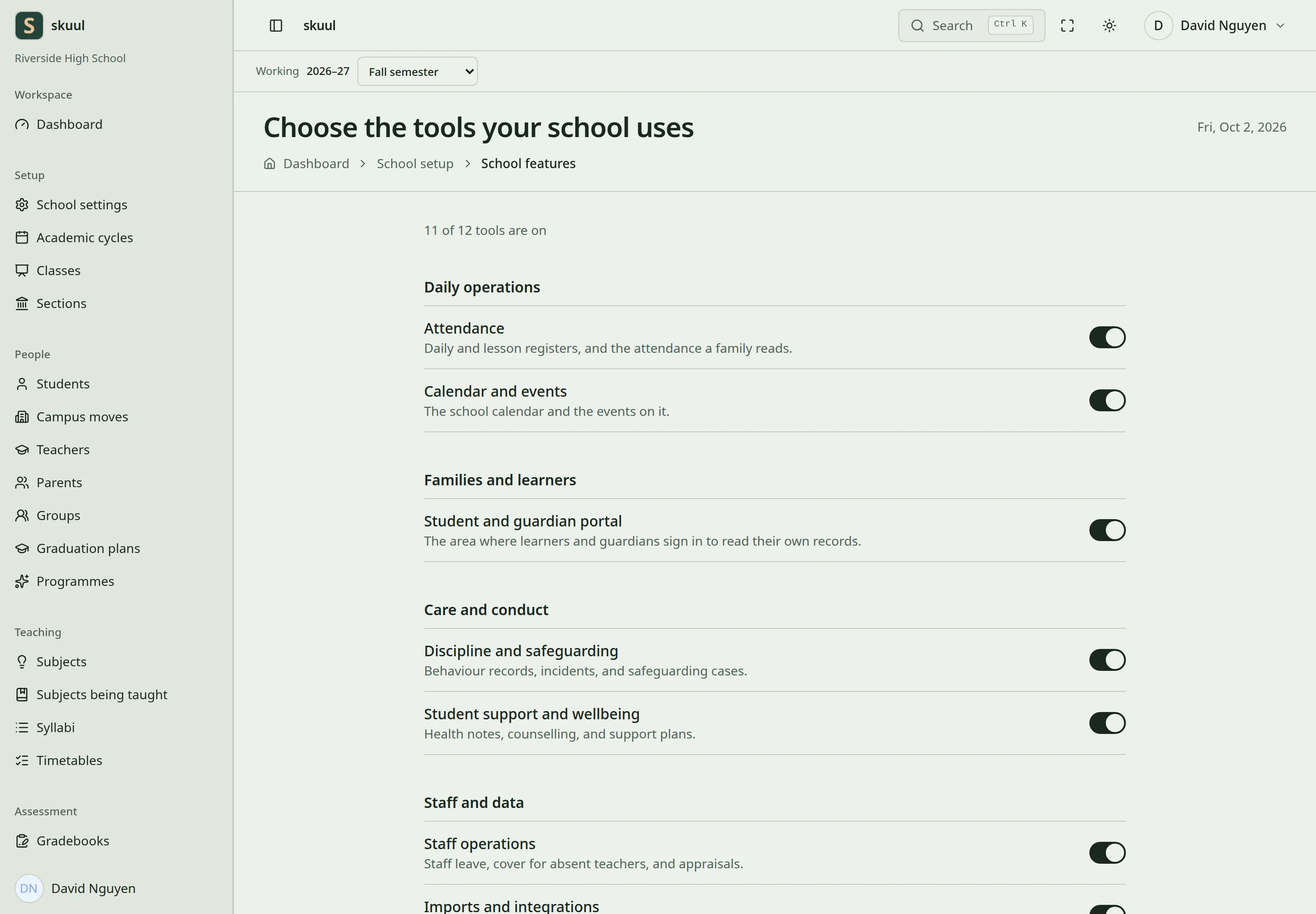
A feature switch controls the whole application area.
| Feature | Default | Purpose |
|---|---|---|
| Attendance | On | Daily and lesson registers. |
| Portal | On | Family views and requests. |
| Discipline | On | Behaviour and safeguarding cases. |
| Wellbeing | On | Support plans and learner health information. |
| Staff operations | On | Employment details, credentials, availability, and leave. |
| Events | On | Calendar events and closure days. |
| Ranking | Off | Comparisons of learner results. |
| Imports | On | Checked student and staff CSV imports. |
| Boarding | Off | Houses, rooms, beds, rolls, and nights away. |
| Library | Off | Catalogue, copies, loans, and reservations. |
| Graduation plans | On | Requirements and completion progress. |
| Programmes | On | Clubs and other participation records. |
Identity, authorization, audit records, and enrollment history are core functions. They cannot be disabled with these switches. A switch does not grant permission. Users still need access to the relevant records and actions.
Attendance can also restrict daily or lesson registers. Portal areas have separate stored configuration flags. The current feature screen does not edit these detailed flags. Ask the operator to check them when a feature is enabled but a page remains unavailable.
Before disabling an area, finish or review its open work. Staff can still process existing family requests when family submission is disabled. Re-enable a feature to use its retained records, subject to normal permissions and period status.
Change a feature
- Select the campus and open its feature profile.
- Review existing work in the feature before disabling it.
- Change the required switch and wait for the save result.
- Reload the page and check its saved state.
Diagnose a missing feature page
- Select the campus containing the records.
- Reload the feature profile and confirm the saved switch.
- Check the account's permission for the intended operation.
- Check the record's enrollment, teaching assignment, or ownership requirement.
- Ask the operator to inspect detailed flags when the whole feature is enabled.
Example: enabling Library does not give every teacher lend library item. Enabling Portal does not create a guardian link. Enabling Attendance does not reopen a Closed academic period. Disable a feature only after reviewing its outstanding operational work. Its records remain stored and resume under normal state and permission rules when re-enabled.
Check the result
- Reload the page and confirm that each saved switch retains its state.
- Confirm enabled menu entries appear for an authorized role.