Behaviour and safeguarding cases
Enable Discipline and use Operations → Cases. Behaviour and safeguarding records have different access requirements. Restricted access also permits the assigned handler or the person who reported the case.
Record a case
- Select the case category.
- Enter the event time, location, and factual description.
- Add the involved learners and their participant roles.
- Add relevant staff or other participants where supported.
- Save the case and review its access scope.
A future incident time is not accepted. Record observed facts separately from later decisions. A normal behaviour permission does not expose safeguarding records.
Review and finish a case
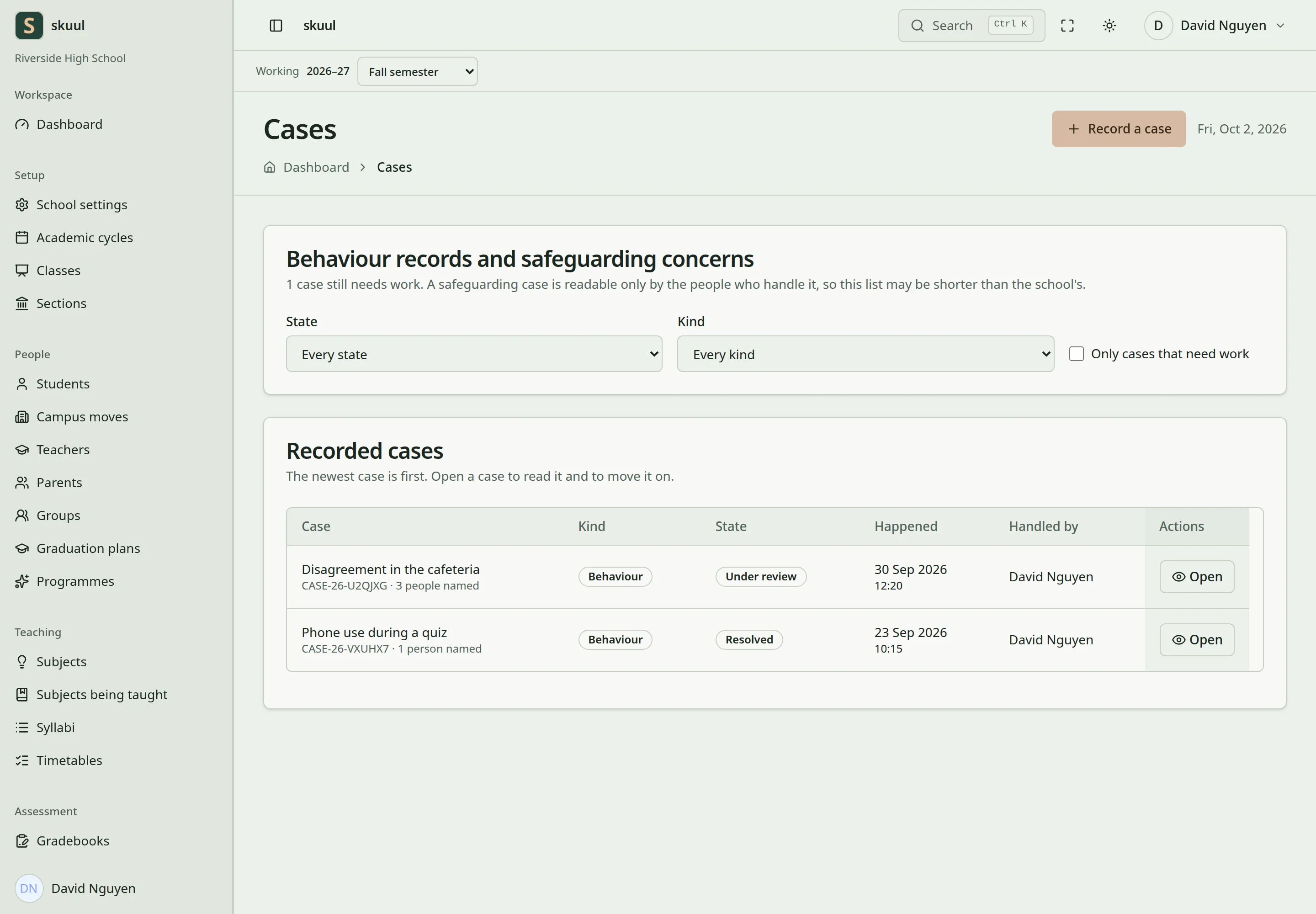
Case category affects access to its records.
Add review notes and actions through the case record. Update its status as the work progresses. States include Reported, Under review, Referred, Action taken, Resolved, and Closed. Follow the transitions offered by the page. A closed case is read-only. Reopen it through the authorized workflow before adding further notes or actions.
These records do not automatically appear in the family portal. A campus move does not provide unrestricted access to the source campus's cases. Use explicit sharing with the applicable restricted-data authority.
Enter the case and follow-up work
Reading ordinary cases requires read incident; creating requires create incident; updating requires update incident. Restricted case reading permits read safeguarding case, the assigned handler, or the person who reported it. Updating still requires update incident and visibility of that case.
- Enter Summary, Kind of case, When, Where, and What happened.
- Select Handled by when a responsible campus worker is known.
- Select Add a person for each participant.
- Choose the learner, Why they appear, and optional participant note.
- Select Record the case.
Summary and location accept up to 255 characters; description accepts up to 5000. When cannot be in the future. Participant notes accept up to 255 characters. At the case record, select Move the case to, enter Why, then select Move the case. Use What kind, What has to happen, Who, and Due to create an action with Add action. Action text accepts up to 1000 characters. Use Add note for progress; note text accepts up to 5000. Select Private to the case handlers for a restricted note.
| Problem | Action |
|---|---|
| Case is absent from a general list | Check restricted visibility and the working campus. |
| Update controls are absent | Check update incident and permission to read this case. |
| New action or note is blocked | Check Closed status and the authorized reopening workflow. |
| Participant is absent | Check that the enrollment belongs to the working campus. |
Check the result
- Review the case state, actions, and notes.
- Verify that closed cases reject ordinary edits.
- Verify that a behaviour-only account cannot read safeguarding records.
See support plans, record sharing, and permissions.