Roles and permissions
Use Roles to manage campus roles. Use a person's access controls to assign them. You need role management permission and authority over the target campus.
Read instructions by role for the eight seeded roles and delegated specialist duties.
Understand the access layers
| Layer | What it controls |
|---|---|
| Account status | Whether the person can sign in. |
| Organization membership | Organization management and reporting. |
| Campus membership | Whether the person can work in a campus. |
| Campus role | Permissions inside that campus. |
| Record policy | Whether the action is allowed for this record and its state. |
| Feature switch | Whether the application area is enabled. |
The built-in protected roles are platform-admin, organization-admin, admin, teacher, student, and parent. These roles cannot be edited or archived in the role editor. Duplicate a role to create an adjustable campus role. Other seeded roles, such as accountant or librarian, are not protected by this list.
Create a campus role
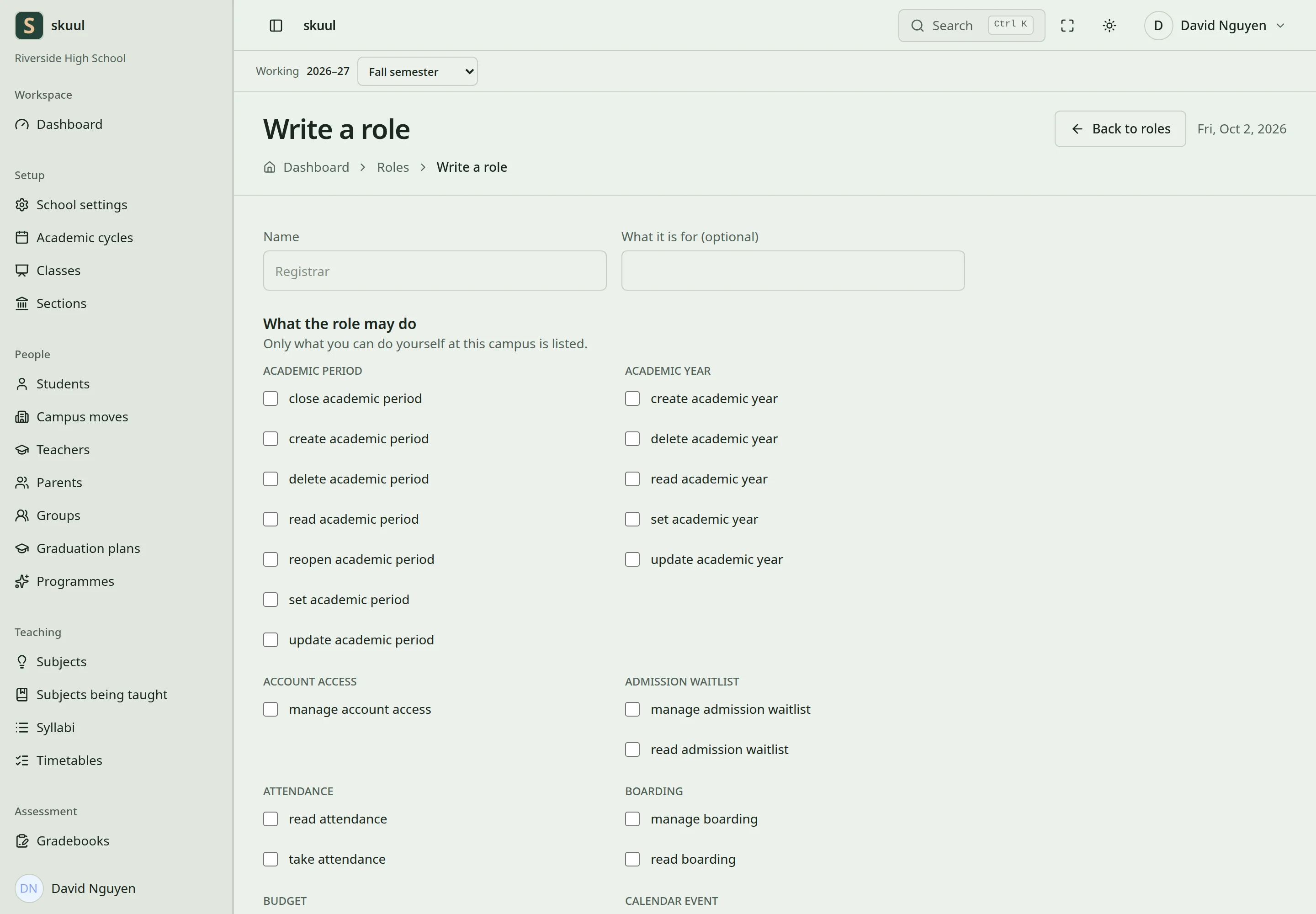
Select only the permissions required for the job.
- Select the campus.
- Duplicate a suitable role or create a new one.
- Enter a unique name for the campus.
- Select only the permissions that the job requires.
- Save the role and assign it to the person.
- Check the person's campus membership and account status.
You can grant only permissions that you hold. The editor prevents removal of the last available role manager. Editing a shared custom role creates a campus copy and updates its holders in that campus. Archiving a custom role prevents new assignments. Existing holders retain their assignments. Remove those assignments separately when revoking access.
Platform permissions and organization permissions use their own scope. A teacher assignment, staff employment record, guardian link, or learner placement is not a substitute for permission.
Use role controls and revoke an assignment
Read roles with read role; creating, changing, archiving, and assigning require manage role. For a new role, enter Name, What it is for (optional), and selected permissions. Select Write the role. Name accepts up to 100 characters; description accepts 255. To copy a role, open its record, enter Name of the copy, and select Copy.
At the role record, select Person who works here, then select Give. Check that person under Who holds it here. To revoke this assignment, select Take it away beside the intended person and confirm. Review their other roles because another role may grant the same permission. Stop offering it prevents new assignments; existing holders keep the role. Use Offer it again to make the role assignable again.
| Problem | Action |
|---|---|
| Built-in role cannot be edited | Copy the protected role into a campus role. |
| Permission cannot be granted | Check whether you hold that permission yourself. |
| Removing permissions is refused | Check the last available role-manager restriction. |
| Archived role holder still performs actions | Remove the existing assignment and review other roles. |
| Role exists in another campus only | Create or assign the intended role in the working campus. |
Check the result
- Check the role name and permissions after saving.
- Verify permitted actions with the intended member account.
- Verify that an account without the permission cannot perform the action.
See account access and security design.