Calendar events and closure days
Enable Events and use Operations → Calendar. Use School calendar for the calendar view available to your account. You need event management permission to make changes.
Add an event
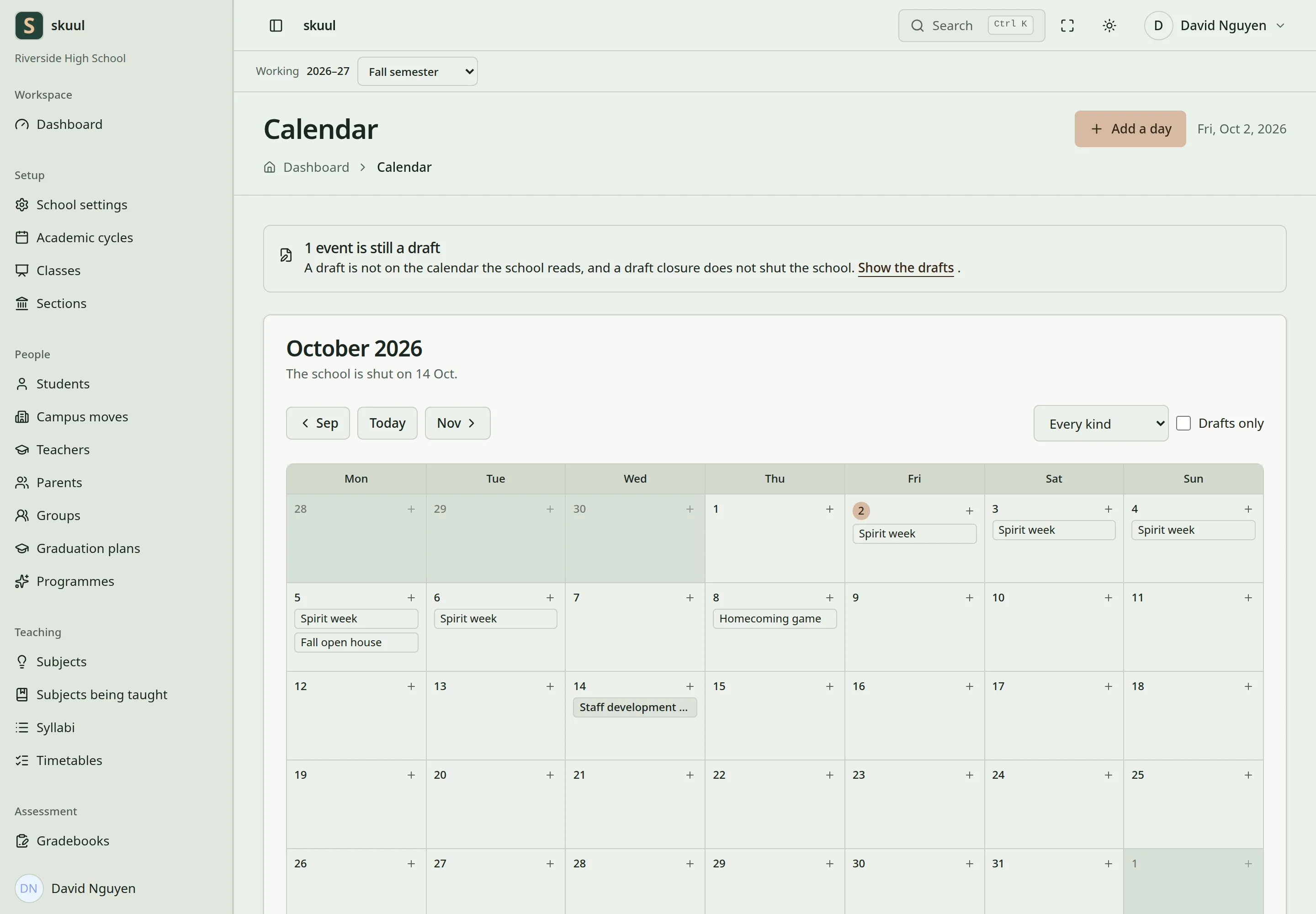
A closure day differs from closing an academic period.
- Select the campus and calendar context.
- Enter the event title, type, and dates.
- Add the description and applicable audience or teaching scope.
- Save the event.
- Check the calendar view for the selected dates.
Use the event type that matches the activity. Academic cycle dates are managed in the academic calendar, not replaced by an event. A calendar event does not by itself publish a notice or change a learner's placement.
Record a closure day
Use a closure event when the campus or selected teaching context is closed. Check the start and end dates and scope before saving. Attendance and lesson-cover workflows check closure days. A closure day can prevent a new register or lesson substitution. This is separate from closing an academic period, which freezes its operational records.
Review visibility
Families can read the calendar when Events and the Calendar portal area are enabled. Check the event scope when an expected event does not appear. Calendar reminders depend on the running scheduler and configured email delivery.
Enter the event fields and publish
Read events with read calendar event; create with create calendar event; edit with update calendar event. Publication requires publish calendar event. Saving a draft does not publish a closure day.
- Enter Title and select Kind of day.
- Choose All day, or enter start and end times.
- Enter Starts, Ends, and optional Where.
- Enter What it is (optional) and select Who it is for.
- Save the draft, then open its saved record.
- Select Publish and confirm it is On the calendar.
Title and location accept up to 255 characters; description accepts up to 2000. Ends cannot precede Starts; an event cannot span more than one year. An all-day event covers each selected day through its end. Select sections or named campus people where the audience needs restriction. For a published closure, attendance and timetable checks use the closure's actual scope.
Use Make it a draft again in the event menu to withdraw publication with the required authority. Review existing operational records before changing a closure interval. A draft closure has no published closure effect.
| Problem | Action |
|---|---|
| Family cannot see an event | Check publication, audience, Events, and the Calendar portal area. |
| Attendance still opens on a closure date | Check that the closure is published and includes the intended section. |
| Date range is rejected | Correct reversed dates or an unintended year-long interval. |
Check the result
- Check the event date, type, and scope in the calendar.
- For a closure day, confirm the intended register or cover restriction.
See academic calendars, attendance, and scheduled work.