Academic calendars and closure
Use Setup → Academic cycles to prepare a campus calendar. Use Organization → Calendar templates for reusable organization calendars. You need calendar management access. Closure and reopening require their own authority.
Prepare a cycle
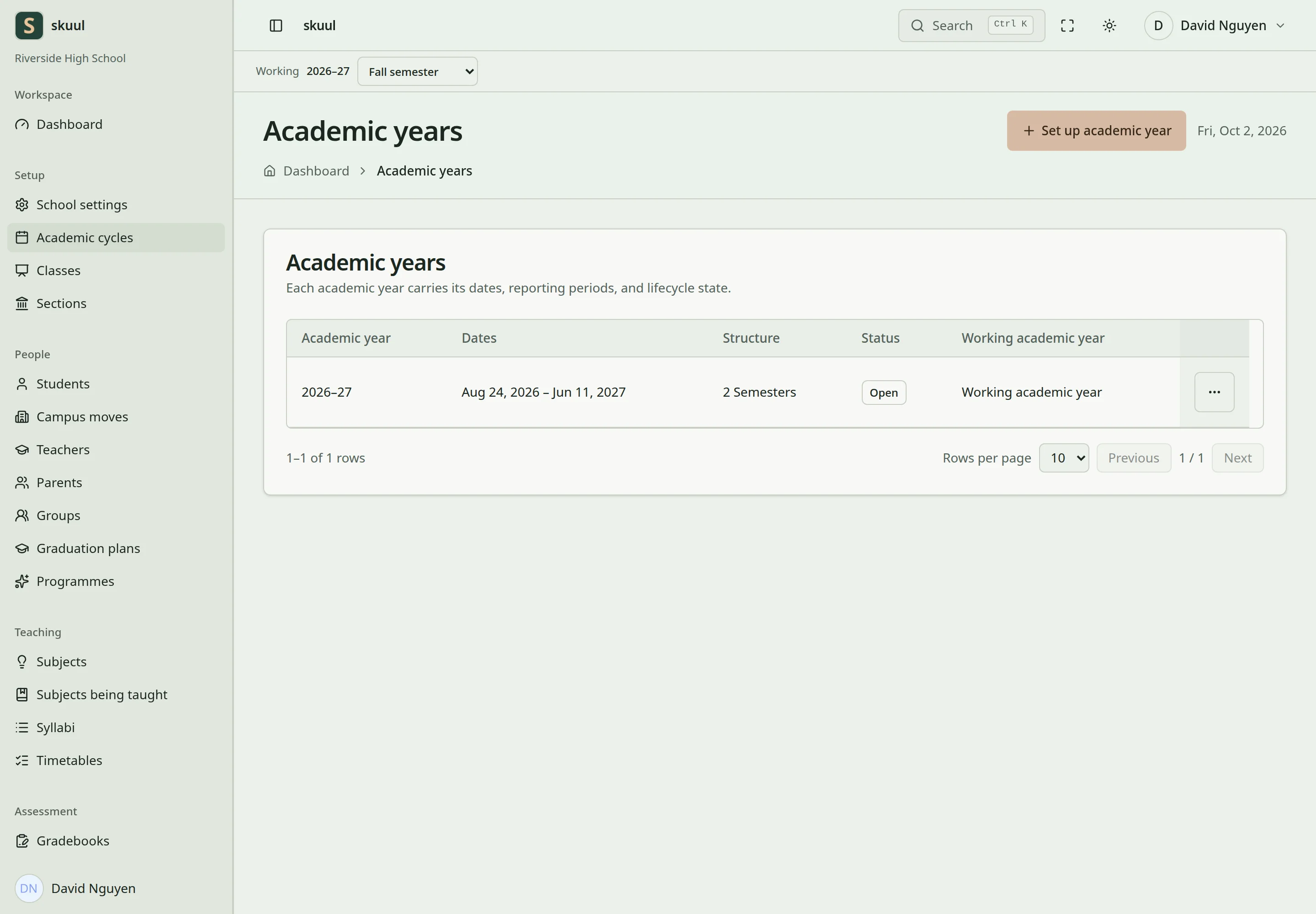
Check period dates and status before operational work.
- Create the cycle with its start and end dates.
- Add dated teaching periods.
- Check that periods fit within the cycle and do not overlap incorrectly.
- Add nested periods where required.
- Publish the draft calendar after checking its dates.
- Select the cycle and period for teaching work.
Templates let campuses reuse a calendar structure. Publishing requires a dated cycle and at least one dated period. A child period must fit within its parent's dates. Holidays are not teaching periods. Existing timetable records can prevent removal of a period.
Understand period status
| Status | Operational effect |
|---|---|
| Draft | Planning only. |
| Scheduled | Published dates, awaiting the start date or manual opening. |
| Open | New teaching records and normal work are allowed. |
| Closing | Corrections are allowed; new work is restricted. |
| Closed | Operational records are read-only. |
| Archived | Finished history; the period cannot reopen. |
The scheduler opens scheduled periods when their start date arrives. It never closes a period automatically.
Close a period or cycle
- Open the closure review.
- Resolve blocking gradebook entries and incomplete grades.
- Review draft timetables and open child periods.
- Confirm closure when the remaining work is complete.
The readiness check distinguishes blocking items from warnings. Closing a cycle also closes its child periods. Financial periods follow a separate closure process. Reopening requires permission and a reason. Open the parent cycle or period first. An archived period cannot reopen.
Prepare the next cycle
Create the next calendar manually or use the generated draft. Preview the section and course-offering copy actions before applying them. Select a different target cycle in the same campus. Copying teaching structure does not promote learners or publish new results. Complete promotion separately.
Enter calendar dates
Creating a cycle requires create academic year; editing and publishing require update academic year. Period creation and editing use create academic period and update academic period. Closing requires close academic period; reopening requires reopen academic period. Changing the working context uses set academic year and set academic period.
In the calendar editor, enter Starts on, Ends on, and Reporting structure. Use Split evenly to generate an initial set of periods. Review each period's Name, Type, Starts, and Ends before saving. Use Add period for another row. The editor requires between one and eight period rows, with names up to 100 characters. Select Create draft school year for a new cycle, using the campus term. Select Save draft, or Save and continue during setup, to save an existing cycle. After reviewing the setup, select Publish and finish setup where that setup control appears. Generated equal intervals are a starting point; they do not know local holiday or examination policy.
Example: a cycle runs from 2026-09-01 to 2027-07-31. Set Term 1 from 2026-09-01 to 2026-12-18. Every child period must fit within its parent, and every top-level period must fit within the cycle. Use the separate school-calendar workflow for holidays and closure days. When existing records fall outside changed dates, review the date-impact warning before confirming.
Perform closure and reopening
- Open the cycle and find the intended period.
- Select Start closing to restrict the period to correction work.
- Finish or correct the outstanding records.
- Select Close and read the readiness review.
- Resolve blocking work or review the explicit force-close option with the authorized decision maker.
- Enter the closure note if needed and confirm Close.
Close with this work still open deliberately overrides reviewed outstanding work. Do not select it merely to make the warning disappear. Read the individual blocking and warning items before confirmation. To correct a Closed period, select Reopen, enter Why it is reopening, and confirm Reopen. The reopening reason is required and accepts up to 500 characters. Open the parent first when a parent closure blocks reopening. Archived periods have no reopening transition.
| Problem | Action |
|---|---|
| Publication is blocked | Check cycle dates and at least one valid dated period. |
| Generated dates are unsuitable | Edit each generated interval before publishing. |
| Ordinary work is read-only | Check whether the period is Draft, Closed, or Archived. |
| Closure reports unfinished marks | Review unentered and incomplete entries in each named gradebook. |
| Next cycle has no learners | Copying setup does not promote or place learners. Review enrollment separately. |
Check the result
- Confirm cycle and period dates after publication.
- Check the current status before recording new work.
- After closure, verify that the intended records reject ordinary edits.
Use period closure and next-cycle handover to coordinate results, documents, structure, and learner placement.