Groups and programmes
Use People → Groups for cohorts. Enable Programmes and use People → Programmes for clubs, interventions, and other services. These records are separate from class placement.
Manage a group
- Create the group with its type and purpose.
- Select members from the permitted campus records.
- Record the membership dates.
- End a membership when the person leaves the group.
Group types include graduation year, scholarship, club, watchlist, ranking group, and other. Watchlists have restricted access. A dated membership retains its history. Do not move a learner's class placement merely to add them to a cohort. Use the group record to review its current and earlier members. Membership dates must satisfy the form's date rules.
Create a programme
Choose a type: Club, Intervention, Support service, Extracurricular, or Special. Enter its name and description. Keep the programme active while it accepts new participation.
Give a learner a place
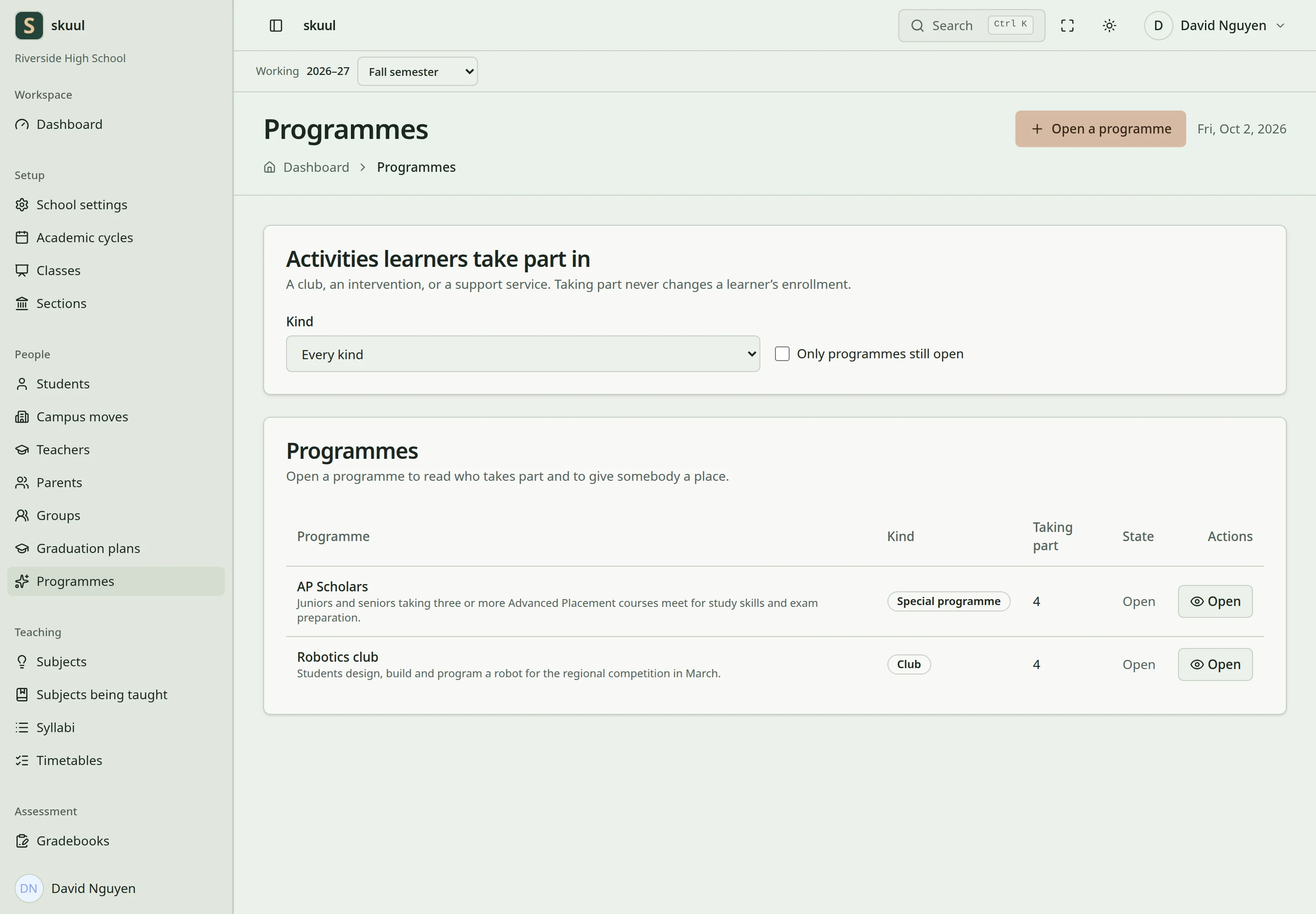
Programme participation does not change class placement.
- Open the programme record.
- Select the learner and participation start date.
- Save the proposed place.
- Review the participation state, schedule, and responsible staff.
- Use the available state transition to finish, withdraw, or activate participation.
Participation states are Requested, Taking part, Completed, and Withdrawn. Existing participation checks prevent duplicate running places. The current programme workflow does not enforce a capacity or maintain an admission waitlist. Inactive programmes cannot accept normal new participation. Ending participation retains the earlier record. A programme does not grant a learner or staff member new campus permissions.
Families see eligible participation when Programmes and the Programmes portal area are enabled. Financial budgets can optionally refer to a campus programme.
Use group controls
Use read cohort, create cohort, and update cohort for corresponding group tasks. Restricted watchlists also require read restricted cohort. Enter Name, Kind of group, and optional description, then select Make the group. At the group record, choose Learner and Joined on, then select Add. Select Take out to end membership while retaining its earlier place in the group.
Use programme controls
Use read program, create program, and update program for corresponding programme tasks. The permission names use program, although the interface uses programme. Enter Name, Kind, and optional description, then select Open the programme. At the record, choose Learner, Starts on, optional When it runs, and optional Run by. Select Give a place, then check the saved participation state. Use the row's Mark as [state] action for a permitted transition. Programme and group names accept 100 characters; descriptions accept 1000.
Closing a programme blocks new places while existing places keep running. Closing a group blocks new members and retains membership history.
| Problem | Action |
|---|---|
| Watchlist is hidden | Check restricted-cohort authority. |
| Programme rejects another place | Review the learner's existing running participation. |
| No new learner can join | Check whether the group or programme is still open. |
| Programme shows no capacity queue | Capacity and waitlist enforcement are not implemented for programmes. |
Check the result
- Check the participation state, start date, schedule, and responsible staff.
- Confirm that the learner has no duplicate running place.
- Review group membership separately from the learner placement.
See student enrollment, budgets, and family portal.