Result approval and official documents
Working marks, approved results, report cards, and transcripts are separate records. Saving marks does not publish them to families. Submitting a result saves a revision; approving it makes that revision official.
Before you start
Use read gradebook to open the offering's gradebook. Use publish result to submit results and approve result to review them. Gradebook access also checks teaching assignments. A reviewer needs access to the gradebook as well as approval authority. Report-card and transcript directories require read report. Issuing these documents requires create report.
Submit one learner's result
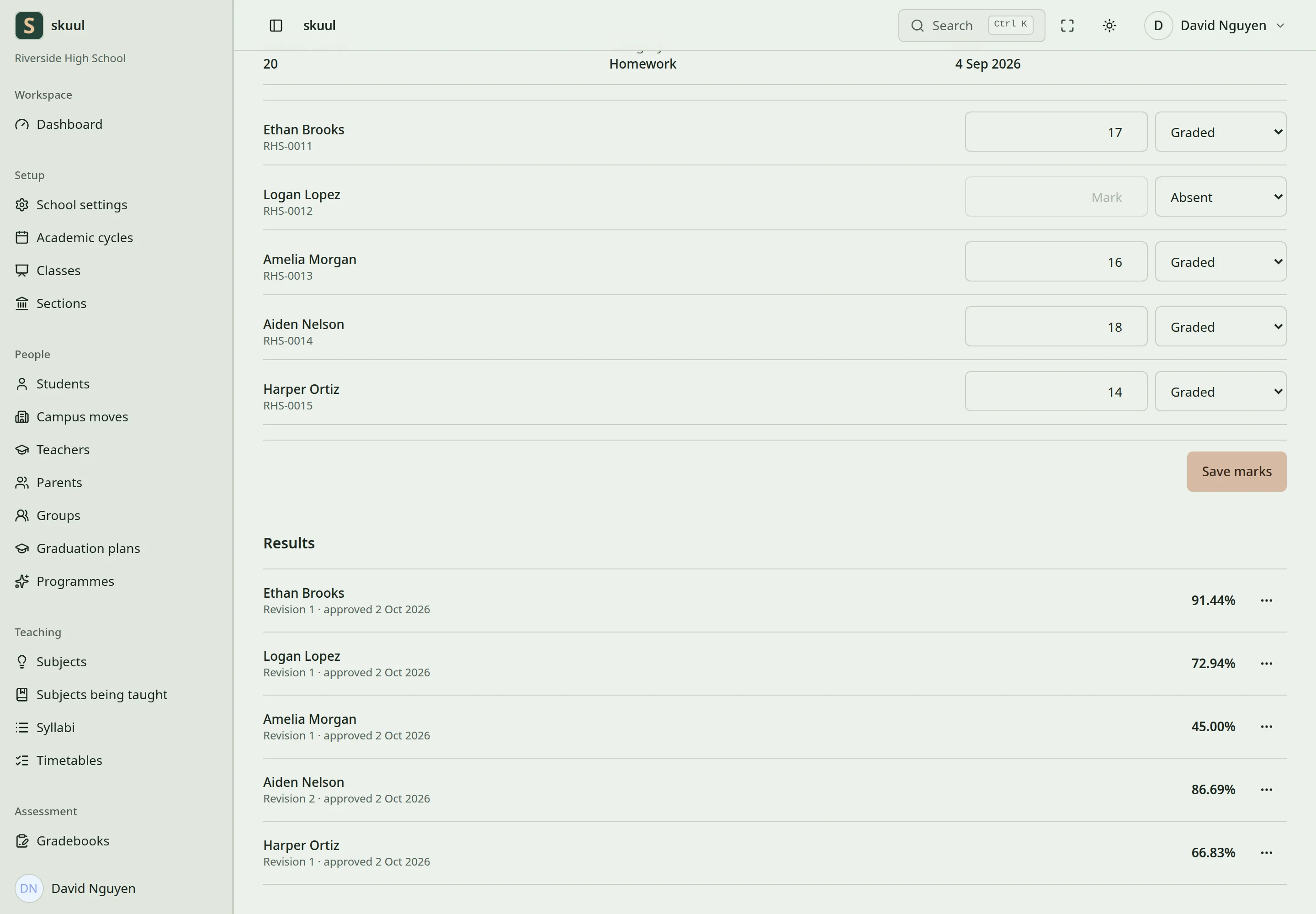
Families read approved publication revisions.
- Open the offering's gradebook.
- Save all intended marks using Save marks.
- Review excluded, missing, absent, incomplete, and unentered items.
- Find the learner's result controls.
- Select Send for approval.
- Confirm that a numbered revision is waiting for approval.
The submission captures the calculation and assessment data at that time. Later mark changes do not change this saved revision. An identical waiting revision cannot be submitted twice. The operation applies to the selected learner, rather than approving the whole marksheet.
Approve or return a result
- Sign in as a different authorized reviewer.
- Open the offering's gradebook and find the waiting revision.
- Check the learner, marks, entry states, and calculated result.
- Select Approve when the revision is correct.
- Confirm the approved revision number and date.
To return a revision, select Send back. Enter what the teacher must change, using up to 500 characters. Confirm Send back. The marksheet shows the returned reason. The submitter cannot approve their own revision. A newer revision prevents approval of an older revision.
Correct an official result
- Correct the affected marks and select Save marks.
- Select Send a new revision for that learner.
- Ask a different reviewer to check and approve the new revision.
- Verify the new approved revision in the family portal.
The previous snapshot remains stored. A pending or returned correction does not replace the family's latest approved result. For example, revision 1 stays visible while revision 2 waits for approval. After approval, families read revision 2. Previously issued report cards and transcripts remain fixed; reissue them separately.
Publish a report card
- Open the report-card directory.
- In Publish a report card, select Learner.
- Select the academic period.
- Enter Reason for a revision when reissuing a card.
- Select Publish.
- Open the resulting card and check its learner, period, and revision.
The learner and period must belong to the working campus. The period must be Closing, Closed, or Archived. At least one approved subject result is required. An Open period is not ready for this document workflow. Publishing again creates a new fixed revision. Use the directory's learner, cycle, and period filters to find older cards.
Issue a transcript
- Open the transcript directory.
- In Issue a transcript, select Learner.
- Enter Reason for a revision when reissuing a transcript.
- Select Issue transcript.
- Open the issued revision and review its published subject history.
A transcript requires at least one approved result. It records the available published history at issuance. Later approvals require a new transcript revision to update that issued document. Families need the Documents portal area enabled to read eligible issued documents.
Resolve publication problems
| Problem | Action |
|---|---|
| Submission controls are absent | Check publish result, current teacher assignment, and period status. |
| Approval is refused | Use another reviewer and select the latest waiting revision. |
| Calculation differs from expectations | Review category weights, item weights, and entry states in the gradebook guide. |
| Family sees the older result | Check whether the new revision is approved. |
| Report card cannot publish | Close or begin closing the period, then check for approved subject results. |
| Issued document still contains an old mark | Reissue the document after the corrected result is approved. |
Compare results
Enable Ranking and open Assessment → Rankings. Filter by cycle, period, level, section, cohort, or subject as required. Whole group includes levels inside the selected level group. Check those filters before comparing learners with different assessment sets.
Generic report exports are separate from issuing official document revisions.