Import student and staff CSV files
Enable Imports and use Imports with import permission. Select the destination campus. For students, select the destination academic cycle as well. The application supports student and staff imports.
Check and apply a file
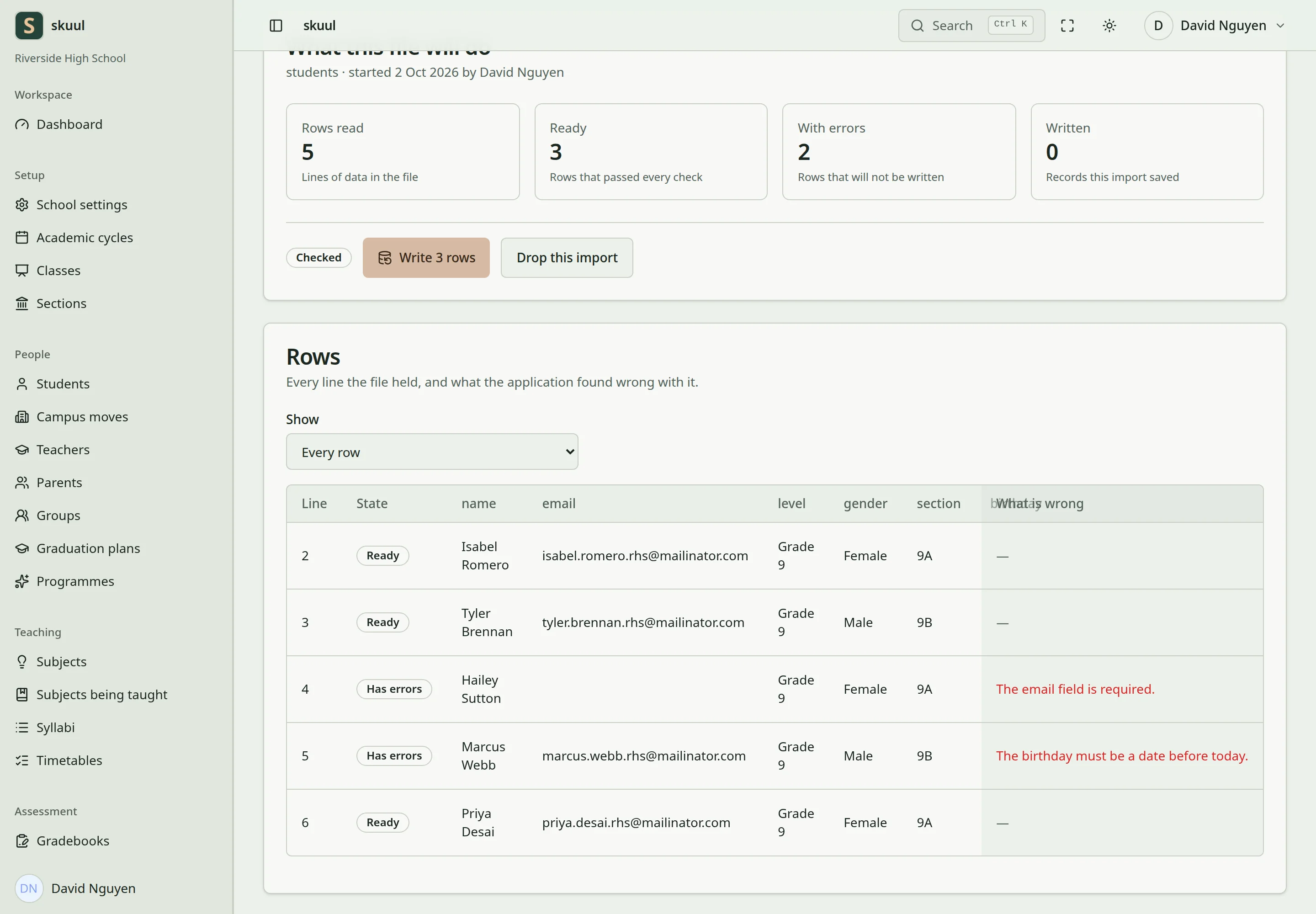
Checking a file does not apply its rows.
- Prepare a CSV file with a header row.
- Choose Students or Staff and upload the file.
- Review the checked rows and errors.
- Correct the file and check a new batch when necessary.
- Apply the checked batch when its valid rows are ready.
- Review the applied and failed row counts.
Checking stages the import; it does not create the people records. Applying writes valid rows. Invalid rows remain reported instead of stopping every valid row. Each applied row uses its own transaction. A batch can be applied once. Review failures before preparing another batch. Cancel an unapplied batch when it should not proceed. States include Draft, Checked, Applied, Failed, and Cancelled.
Student columns
Required: name, email, birthday, level, section.
Optional: source_id, gender, admission_number, admission_date, address, city, state, nationality, phone.
Use level and section names that exist in the selected campus and cycle. The birthday must precede today. Email validation includes a valid mail domain. Gender values are Male, Female, Non-binary, or Prefer not to say. Duplicate admission numbers and incompatible existing enrollments fail validation or application. A learner enrolled elsewhere needs a transfer or campus move.
Staff columns
Required: name, email.
Optional: source_id, staff_number, job_title, department, employment_type, joined_on, address, city, state, nationality, phone.
Employment values are full_time, part_time, contract, volunteer, or intern. A staff import creates or updates the employment profile and associated account. It does not assign subjects or teaching responsibility. An enrolled learner cannot be imported as staff.
Use stable source identifiers
Use source_id to identify the same source record in later imports. Keep it stable within that import source and type. The importer can update its previously linked record instead of creating a duplicate. Check row errors and the resulting records before sending invitations.
Use the exact import controls
Read batches with read import; upload and check with create import; apply with apply import. Checking and applying are separate authorities.
- Select What the file holds: Students or Staff.
- Select CSV file, with a maximum size of 5120 KB.
- Select Check the file.
- Open the resulting batch and review every invalid row's message.
- Select Write N rows only when its valid rows should be applied.
- Wait for completion and review applied and failed row counts.
Drop this import cancels a batch that should not be applied. Checking creates staged batch records but does not create or update the core people records. Application runs synchronously in the Livewire request; it is not a queued import job. Keep the batch identifier before attempting recovery from a timeout. Do not assume a connection timeout means no rows were written.
Correct an import safely
If checking reports errors, correct the source CSV and upload a new batch. Keep stable source_id values for records already imported from that source and type. After partial application, review the row results before preparing another file. Rows apply in separate transactions: one failure does not undo earlier successful rows. A completed batch cannot apply again. Do not remove successful people's accounts merely to rerun the file.
| Problem | Action |
|---|---|
| Upload rejected | Check CSV content, accepted MIME type, header, and 5 MB limit. |
| Student section not found | Use exact level and section names in the working campus and cycle. |
| Email fails | Correct the address and confirm the mail domain has valid DNS. |
| Learner already enrolled elsewhere | Use the campus move workflow instead of importing another identity. |
| Staff row describes an enrolled learner | Resolve identity eligibility before another staff import. |
| Apply fails after a successful check | Recheck eligibility and capacity; application checks current state again. |
| Request times out | Reopen the batch and inspect applied rows before submitting another import. |
See the reference guide's CSV examples for headers and date values.
Check the result
- Review the applied and failed counts after applying a batch.
- Open sample resulting records and check their campus and placement.
- Confirm the same batch cannot apply again.
See CSV examples and import design and accounts.