Levels, sections, and teaching models
Use Setup to manage the campus structure, then open the selected academic cycle. A level is reusable. A section belongs to a level and one cycle.
Create the structure
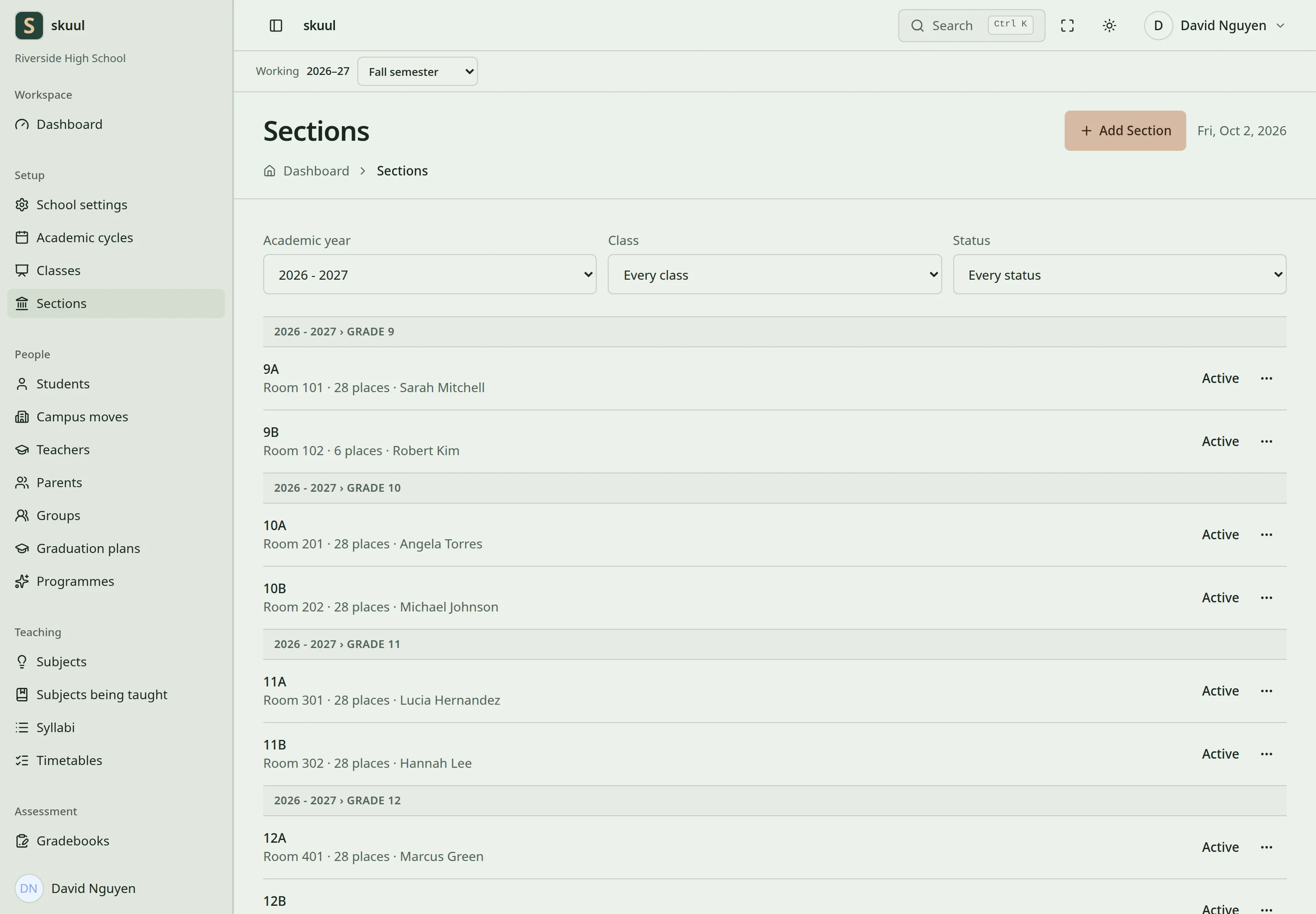
Section capacity includes suspended enrollments and open offers.
- Create the academic levels used by the campus.
- Set valid parent levels where the structure needs a hierarchy.
- Create sections for the cycle under the correct levels.
- Set a section's capacity and homeroom teacher where required.
- Place learners into these sections.
Use a section capacity to enforce seat limits. Capacity includes active and suspended enrollments, plus seats reserved by admission offers. Archived levels and sections cannot accept normal edits. Before archiving a section, move its active learners and resolve its admission queue. Keep its history for reports and previous placements.
Select a teaching model
| Model | Use |
|---|---|
| One class group all day | Most teaching follows the learner's home section. |
| One class group, with exceptions | Home sections remain, with separate groups for selected offerings. |
| A timetable of separate subjects | Offerings can use separate subject rosters. |
Set the model for a future cycle before building its offerings. A running cycle needs the audited migration preview and confirmation workflow. Changing a terminology profile does not change this model.
Home-section and academic-level rosters are available across models. Combined-section and individual rosters normally require the hybrid or separate-subject model. An offering-specific exception can permit a different roster where the application allows it.
Reuse structure
Preview section copying into the next cycle. Check the destination names, capacity, and teacher assignments. The copy action is for structure. Use the enrollment workflow to move learners.
Enter level and section details
Create a level with its name, optional Short code, and Display order. Use Level group (optional) to place a teaching level inside a group. Names and supplied short codes must be unique within the campus. A group is a grouping node, rather than an ordinary learner placement.
- Open section creation for the intended school year.
- Select the class or academic level.
- Enter the section name and optional class teacher.
- Enter optional room, stream, shift, language, and display label details.
- Enter Capacity if seats require a limit.
- Select Create draft section, using the campus's section term.
- Review the saved section, then select Activate when it is ready.
Section names are unique within their level and cycle. Capacity accepts integers from 1 to 999; blank means no configured seat limit. Display order accepts integers from 0 to 9999. A room label describes placement; facility bookings have separate availability controls.
Change the teaching model safely
Use Save teaching setup when configuring an eligible future cycle. For a running cycle, use Move this cycle and enter Why the cycle is moving. That reason requires 15 to 500 characters. Existing arrangements remain; new work uses the selected model. To permit a subject exception, select Subject, How it is taught, and optional Level. Enter Why, using 10 to 500 characters, then select Add exception.
| Problem | Action |
|---|---|
| Learner cannot select a section | Check section Active state and selected cycle. |
| New section name is rejected | Check other sections within the same level and cycle. |
| Archiving is blocked | Move current learners and resolve waiting candidates and offers first. |
| Separate roster is unavailable | Review the teaching model or create an authorized subject exception. |
Check the result
- Check that every section belongs to the correct level and cycle.
- Review its occupied seats and reserved offers before new placement.
See course offerings, students, and academic calendars.