Staff records, availability, and leave
Enable Staff operations and use Staff → Staff directory. Employment records, account access, and teaching assignments are separate.
Maintain a staff profile
- Create or select the staff member's account.
- Add their campus employment profile.
- Enter the staff number, job title, department, and employment type.
- Enter the joining date and current employment status.
- Add credentials with issue and expiry dates where required.
- Record weekly availability hours.
Employment types are full time, part time, contract, volunteer, and intern. The staff number must be unique within the campus. A person still enrolled as a learner cannot be made staff. A profile does not automatically assign teaching responsibilities. Use the teacher and course-offering workflows for those assignments. The current staff profile includes credentials and availability; it has no appraisal workflow.
Process leave
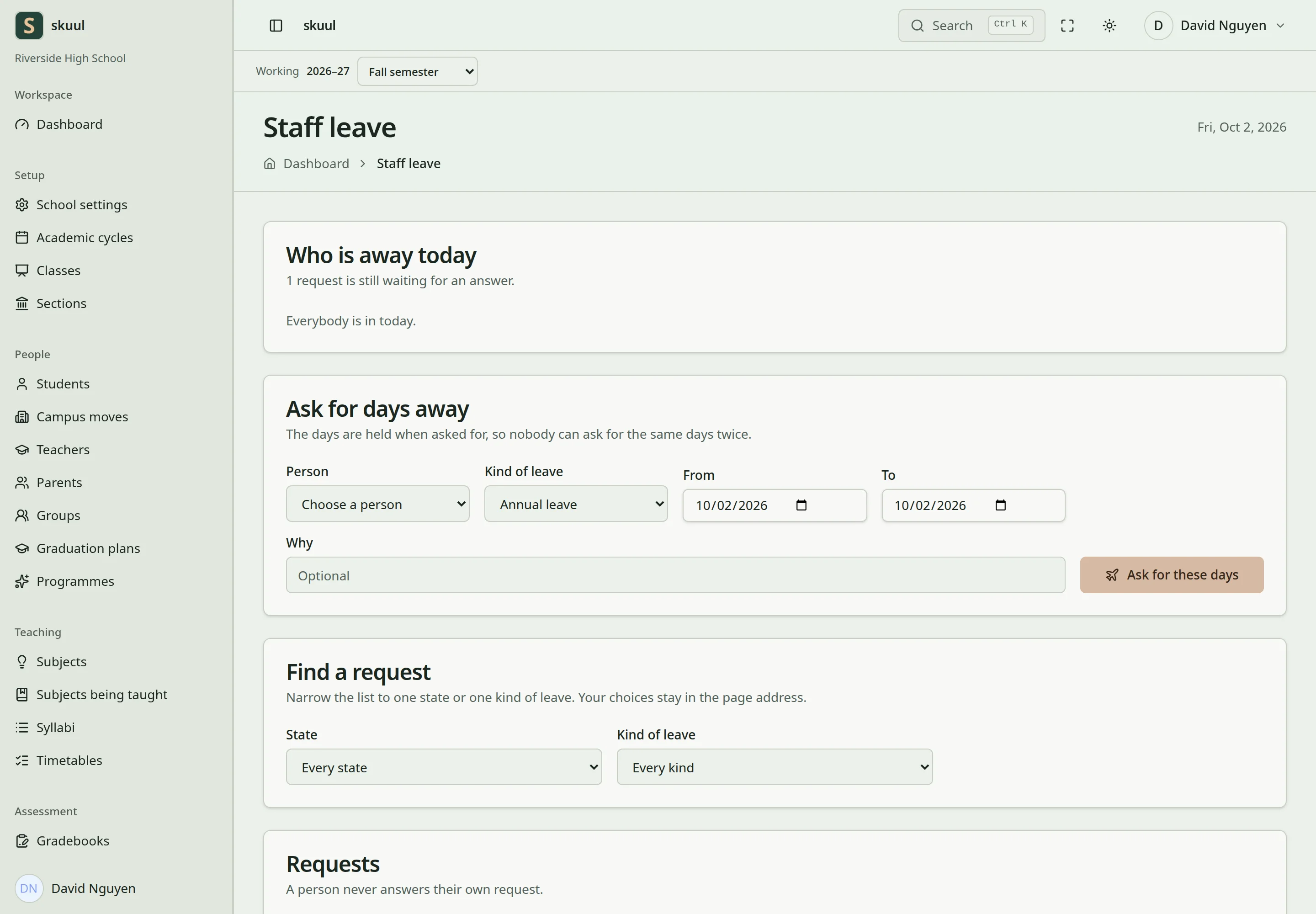
Approved leave affects teaching availability.
Open Staff → Staff leave. Submit a request with its leave type, dates, and reason. The request must belong to an eligible employment record. Dates must form a valid interval and cannot overlap another applicable request. An authorized reviewer approves or refuses the request. Follow the page's permitted cancellation and status transitions. Approved leave affects teaching availability and lesson-cover checks.
Record a leaver
Set the employment's leaving date and status through the staff record. The scheduled leaver process ends campus membership after the last day passes. It does not automatically archive the person's entire organization account. Review remaining memberships and responsibilities separately.
Create employment and working hours
Use read staff profile, create staff profile, and update staff profile for the corresponding tasks. Select an eligible campus Person in employment creation. Enter Employment, optional Job title, Department, Staff number, and Joined on. Select Save the record. Staff number accepts 30 characters; job title and department accept 100 each. An enrolled learner is not an eligible staff person.
On the staff record, select Change to edit The job. Review State and Left on before selecting Save. For a credential, enter Kind, Name, issuer, issue date, and expiry, then select Add the qualification. Expiry must not precede the issue date. For working hours, choose Day, From, and To, then select Add the hours. To must follow From. Hours affect availability checks, rather than granting campus access.
Request and decide leave
Read leave with read staff leave; request with request staff leave; decide with approve staff leave. Select the staff profile, leave type, start date, end date, and optional reason. End date must be on or after start date; the reason accepts up to 500 characters. Review the decision state before arranging teaching cover.
| Problem | Action |
|---|---|
| Person is unavailable for employment | Check campus membership and incompatible learner enrollment. |
| Credential date fails | Correct an expiry before its issue date. |
| Cover assignment conflicts with leave | Select an eligible worker outside approved leave. |
| Leaver can still access another campus | Review that separate membership; ending employment here does not archive the global account. |
Check the result
- Check employment and leave dates after saving.
- Review approval state before assigning lesson cover.
- After a last day passes, verify the campus membership ends through the scheduled process.
See accounts, course assignments, and timetable cover.
Use staff access review to coordinate employment changes, replacement duties, and retained roles.