Timetables and lesson cover
Use Teaching → Timetables after selecting the campus, cycle, and period. Prepare subjects, course offerings, teachers, and rooms first.
Build a timetable
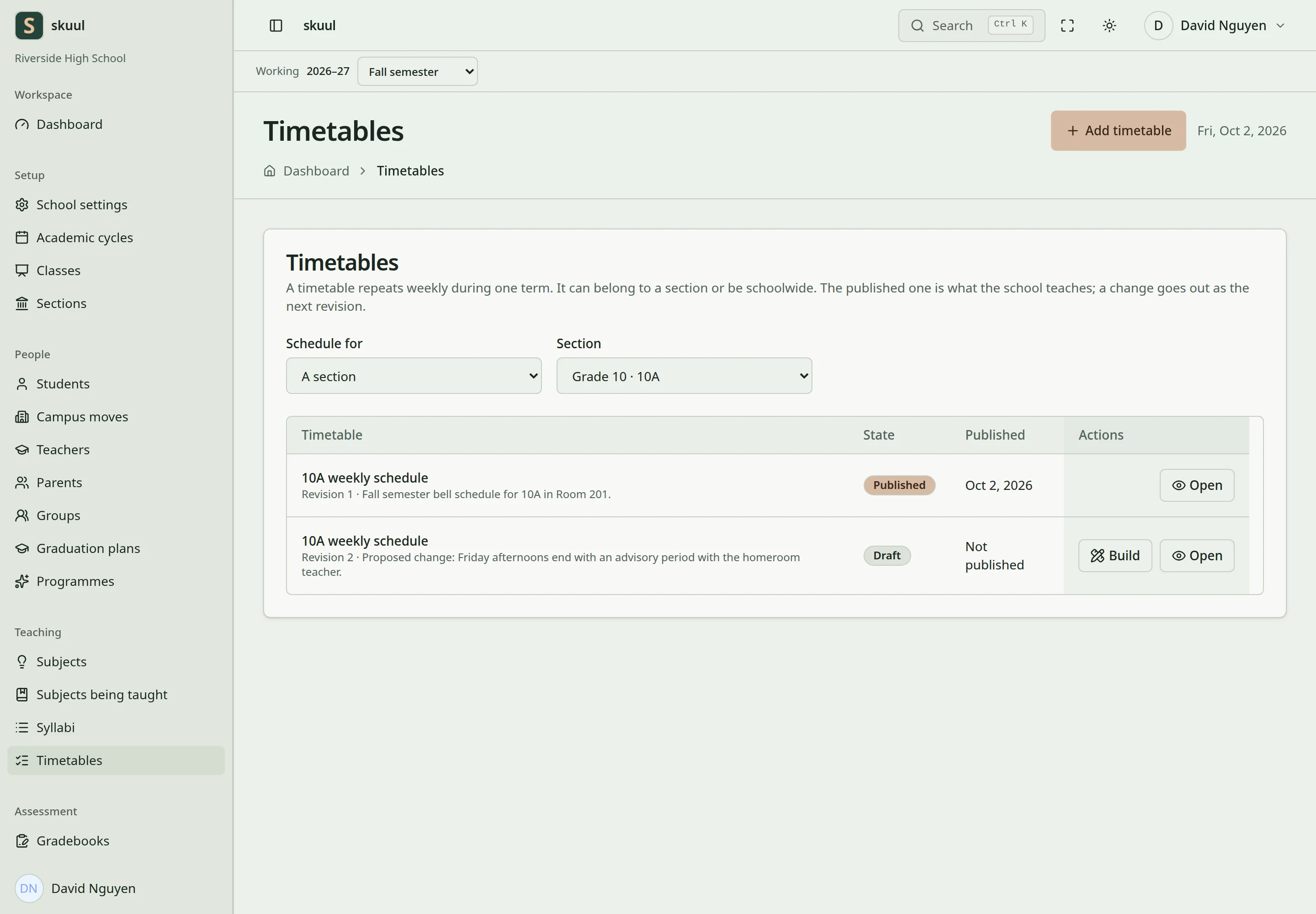
Publish only after reviewing timetable conflicts.
- Create the timetable for the section and period.
- Add time slots with the required recurrence and date range.
- Add subject lessons or custom timetable items.
- Select the teacher and room where required.
- Run the conflict review.
- Resolve conflicts and publish the timetable.
A time slot can be a single occurrence or a recurring slot. Check the recurrence weekdays and date window before publishing. Custom items represent activities outside the subject catalogue.
Conflict checks cover overlapping slots, teacher conflicts, room conflicts, facility bookings, and rooms out of use. Teacher checks can include other campuses in the organization. Review these conflicts before confirming publication.
Revise a published timetable
Draft timetables are editable. Published timetables are read-only. Create the next revision to change a published timetable. The revision copies the schedule into a new draft. Publishing the replacement archives the previous timetable for that section and period. The previous revision remains part of the history.
Arrange lesson cover
Use the dated substitution workflow for a replacement teacher. Select the lesson date and eligible replacement. The application checks staff availability, approved leave, and conflicting teaching work. Use a dated section override for a section-specific exception. These exceptions do not rewrite the published repeating schedule. A closure day can prevent a lesson or cover assignment.
Families see published schedules when the timetable portal area is enabled.
Enter and publish the schedule
Use read timetable to read, create timetable to create, and update timetable to build or publish. School-wide creation also requires create schoolwide timetable.
Enter Timetable name, Academic period, Schedule for, and the required Section. For a slot, enter Starts and Ends as times; Ends must follow Starts. Choose Repeat: weekly, monthly, or one occurrence. A single occurrence requires Date. A recurring slot requires Starts on and Repeats every, from 1 to 52. Weekly recurrence also requires at least one weekday.
In the builder, select Add time slot, then place the subject or custom item. Use Where for the applicable room. Use Leave it empty to remove the slot's assigned item without deleting the slot. The slot's Remove action removes the time slot and everything placed in it. Select Publish only after resolving the listed conflicts. Use New revision on a published schedule to obtain an editable draft.
Record dated cover
- Open the cover panel for the published schedule.
- Select Scheduled lesson and Covering teacher.
- Enter Date and Reason, up to 1000 characters.
- Select Record cover.
- Check that date's teacher assignment.
Use Withdraw to remove eligible recorded cover and restore the usual teacher for that date. For a section-specific revision, select Section under Give a section its own version. Select Start the draft, review its scope, then publish the intended replacement.
| Problem | Action |
|---|---|
| Published schedule cannot be edited | Select New revision. |
| Teacher conflict names another campus | Resolve the teacher's cross-campus appointment. |
| Room is unavailable | Check facility bookings and whether the room is out of use. |
| Cover teacher is rejected | Review approved leave, working hours, closure days, and conflicting lessons. |
Check the result
- Confirm the published revision and applicable section and period.
- Check a dated lesson and its assigned teacher and room.
- After cover changes, verify the affected date without changing the repeating schedule.
See facilities, staff availability, and calendar events.