Notices and email preferences
Use Operations → Notices to prepare campus messages. You need notice read, create, or publication permission for the action.
Prepare a notice
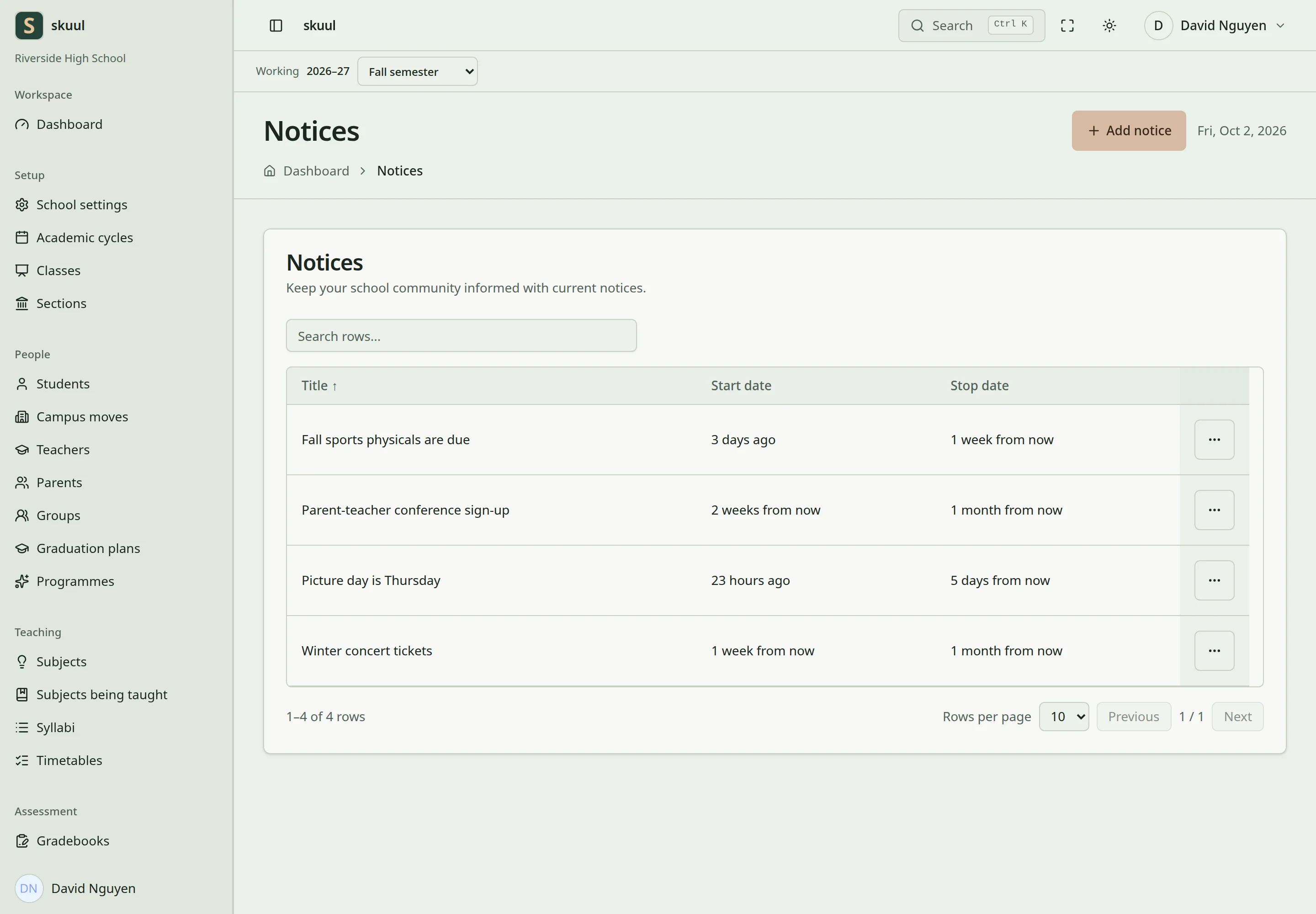
The scheduler controls due publication and expiry.
- Create a notice with a clear title and message.
- Set its start and end dates.
- Select the whole campus, academic levels, or sections as its audience.
- Select whether to include guardians.
- Add an attachment where needed.
- Review the audience and publication settings.
- Publish now or schedule publication.
Publication records the selected recipients. An attachment is served through an authorized download route. Do not treat its storage address as a public sharing link.
States are Draft, Scheduled, Published, Expired, Superseded, and Archived. The scheduler publishes due notices and expires finished notices every fifteen minutes. A published notice is visible to its authorized audience. Create a revision to correct it. The older version remains in the history. Revising a notice does not automatically resend its email.
Review recipient activity
Open the notice to review available recipient and read information. Viewed and acknowledged states represent different recipient actions. Check the record before treating a message as acknowledged.
Set email preferences
Open Notification settings and choose notice email preferences for the campus. Email delivery also depends on the notice's send-email setting, mail configuration, and queue worker. An email preference does not grant access to a notice or change its audience. Families see eligible notices when the Notices portal area is enabled.
Complete the draft form
Use read notice to read, create notice to create, and update notice for permitted changes and publication. Staff-only operations reject portal-only accounts.
Enter Title, Message, From, Until, and the intended audience. Select Guardians too only when guardians must receive the notice. Select Save the draft, then use the notice's publication controls. Title accepts up to 255 characters; message accepts up to 65000. Until must be on or after From. Attachments accept JPG, JPEG, PNG, GIF, PDF, DOC, or DOCX, up to 10240 KB. Class and section audiences require selections from the working campus.
Example: a message to one section with Guardians too reaches that section's eligible learners and guardians. It does not become a whole-campus message. Check the saved recipient audience before relying on it for communication. Use a revision to correct published content; send another authorized communication if recipients must receive another email. Revising alone does not resend mail.
| Problem | Action |
|---|---|
| Scheduled notice remains pending | Ask the operator to check the scheduler and scheduled dates. |
| Recipient sees no notice | Check actual publication recipients and current visibility. |
| Notice is visible but no email arrives | Check the send-email setting, recipient preference, mail delivery, and worker. |
| Attachment is rejected | Check file type and the 10 MB limit. |
| Viewed notice is not acknowledged | Check acknowledgement separately from viewing. |
Check the result
- Review the recorded recipient audience.
- Check the publication state and attachment access.
- Confirm the test recipient sees the eligible published notice.
See family portal, account access, and queue troubleshooting.