Family portal
A learner and their guardians read the learner's school records in the portal. Sign in, then select Everything of mine in the sidebar. The page is called My school.
A guardian sees each learner that the school linked to them. A learner sees their own enrollments. The portal does not use staff permissions. It checks the learner's own account or the guardian link.
Open a learner's records
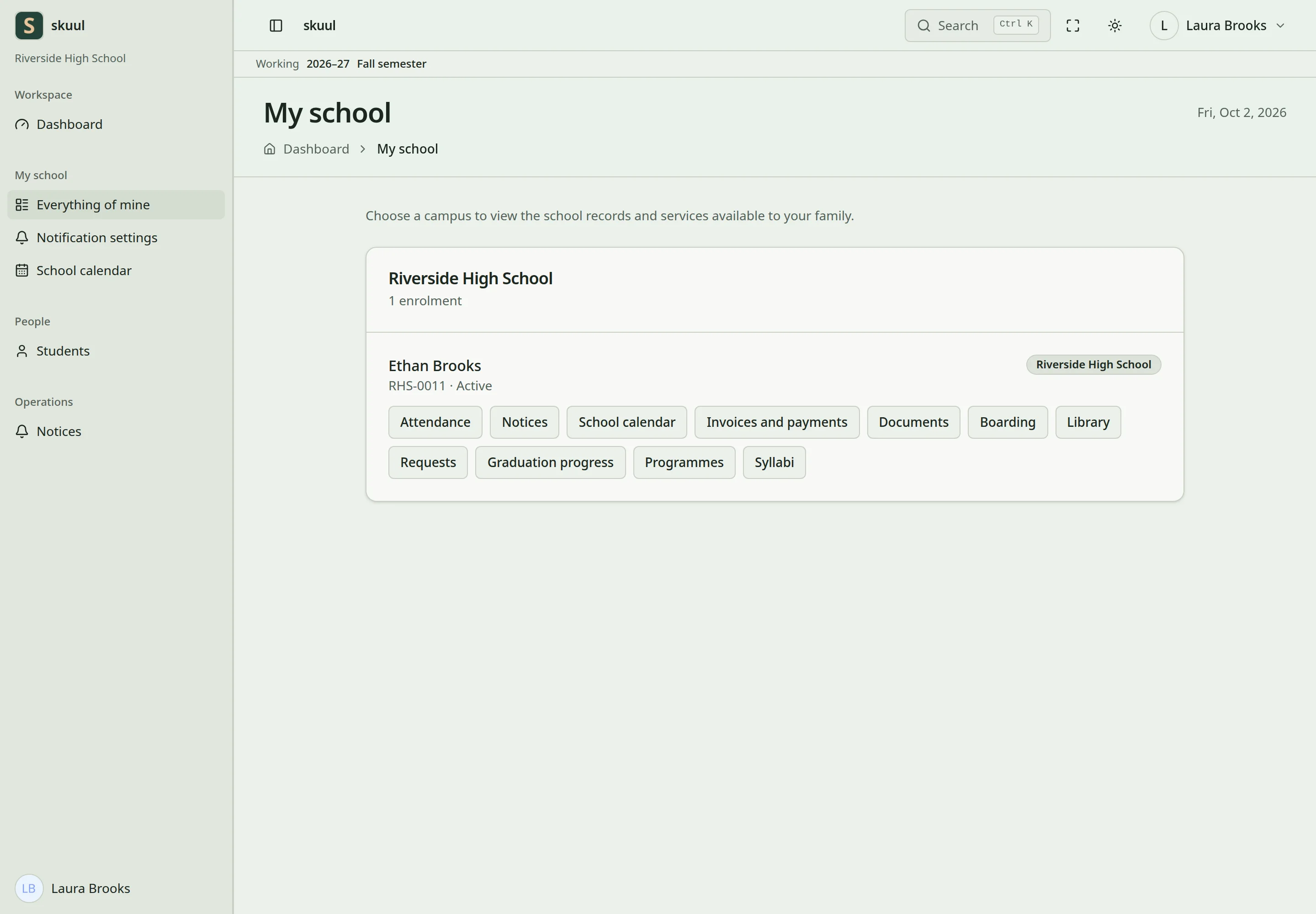
My school groups the learners by campus. Each learner shows their name, admission number, and status, with one button for each open page.
- Find the learner and check their campus.
- Select the page, such as Results or Invoices and payments.
Choose the learner on My school before you open a page. A guardian with two children sees both on My school. Each page shows the learner's name and campus at the top. If a campus closed all its family pages, the learner shows This campus has closed the family pages.
Pages
| Page | What the family sees |
|---|---|
| Results | The latest approved result of each course: subject, term, and score. |
| Attendance | Days present, absent, late, and excused, and the attendance rate. |
| Timetable | The newest published week of the learner's class, with only the lessons the learner takes. |
| School calendar | The campus events for families. |
| Notices | Published notices sent to the learner. |
| Invoices and payments | What is still owed, credit held, the invoices, and debts left at an earlier campus. |
| Documents | The latest report card of each term, and the latest transcript. |
| Requests | Send a request to the school, and withdraw it. |
| Library | Loans and reservations. |
| Boarding | The boarding place and nights away. |
| Graduation progress | Progress against the graduation plan. |
| Programmes | The programmes the learner takes part in. |
| Syllabi | The published syllabus of each course, and the topics covered. |
A result that waits for approval is not shown. The family sees the last approved result until the new one is approved. A rejected result is never shown. Attendance shows totals only. It counts the days the school took a register. Invoices and payments is read-only. The portal has no online payment. Pay through the school's own process.
Choose the pages a campus shows
The campus admin turns the portal and each page on or off.
- Open School settings in the sidebar, then School tools.
- Turn on Student and guardian portal.
- Under Family pages, turn each page on or off.
A page is shown until you turn it off. Turning the portal off hides every page. Turning it on again keeps your page choices. Some pages also need a campus tool:
| Page | Tool |
|---|---|
| Attendance | Attendance |
| School calendar | Events |
| Library | Library |
| Boarding | Boarding |
| Graduation progress | Graduation plans |
| Programmes | Programmes |
When the tool is off, the switch shows Hidden while and the tool name.
Who can read what
| Enrollment status | Portal |
|---|---|
| Active, Suspended | Shown |
| Withdrawn, Transferred, Graduated | Shown, so the family keeps report cards, transcripts, and any debt |
| Archived | Not shown |
A graduated learner's own account cannot open the portal pages yet. Their guardian can. Nobody can open the records of a learner they are not linked to.
Use Notification settings in the sidebar to choose which notice emails you get. It shows only when a campus of the learner has Notices open.
Problems
| Problem | Action |
|---|---|
| Everything of mine is not in the sidebar | Ask the school to link you to the learner. A guardian with no linked learner has no portal. |
| A learner is missing | Ask the school to check the guardian link and that the enrollment is not archived. |
| A page is missing | Ask the campus to check Family pages and the tool the page needs. |
| A result is older than expected | The new result waits for approval. |
| The timetable is empty | The school has not published the class timetable. |
| A document is missing | Ask the school to issue it. |
| You cannot sign in | Use account recovery, or ask the administrator to check your account. |
Use family requests for corrections or questions.