Admission queues
Use the admission waitlist when a section with a capacity limit is full. Open Admissions waitlist in the sidebar, under Students. You need read admission waitlist to see the board. Adding candidates, offering places, accepting, and declining need manage admission waitlist.
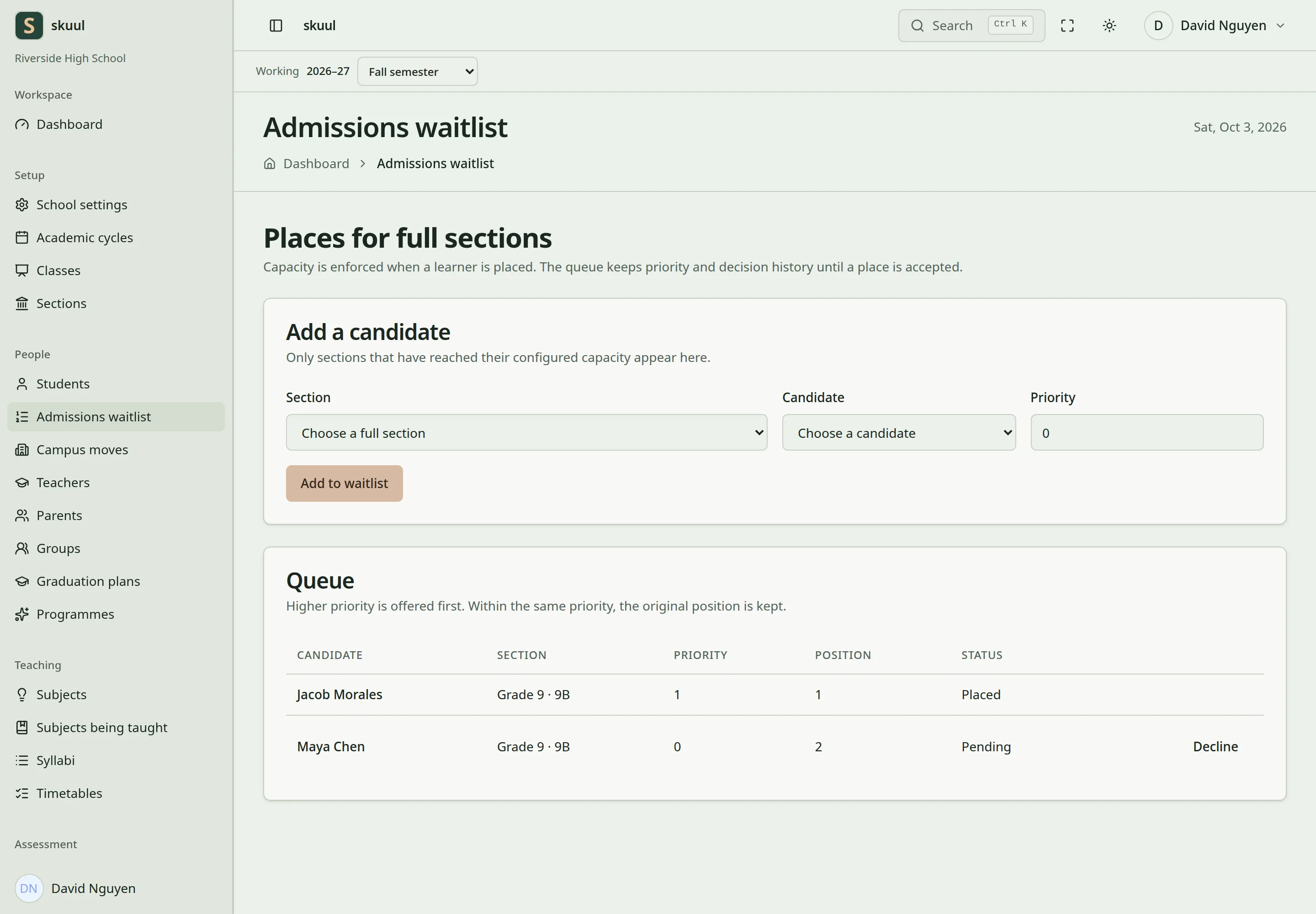
The section is full again, so the pending candidate has no Offer place button.
Add a candidate
- In Section, select the full section.
- In Candidate, select the person.
- Set Priority. A higher number is offered first.
- Select Add to waitlist.
- Find the candidate's row in Queue.
Section lists only sections that are active, full, and in an open cycle. If a section has a free seat, admit the learner instead of waitlisting them.
Candidate lists people with an active membership at this campus. It leaves out learners enrolled here and people who work as staff. The board does not create accounts. Create the person first, for example as a parent, then return.
Adding the same person to the same section again keeps the one entry. Within the same priority, the queue keeps the order in which people were added.
Offer and fill a place
When a seat becomes free, the next candidate of that section shows Offer place. Only that row has the button, and only while the section has a free seat.
- Select Offer place on the next candidate's row.
- Read the message. It names the person who received the offer.
- When the family accepts, select Accept and enrol.
- When the family refuses, select Decline and confirm.
- After acceptance, open the learner's profile and check the enrollment and placement.
An offer holds its seat until it is accepted or declined. Normal placement counts that held seat, so the seat cannot be filled another way.
If the next candidate was enrolled here another way while waiting, the offer skips them. Their entry is withdrawn, and the offer goes to the next person.
Acceptance creates the learner's enrollment in the offered section. A learner who left this campus earlier returns to their own enrollment, with its history and admission number. Acceptance is refused when:
- the candidate already attends this campus
- their earlier enrollment here is Archived or Transferred, which cannot be reopened
- they attend another campus or school (ask that school to move or transfer them)
- they work as staff
Archive a section with a queue
Decide every open entry before you archive the section. The archive is refused while the section has waiting candidates or open offers. Move current learners before you remove the section from use.
| Problem | Action |
|---|---|
| The section is not in Section | Check that it is active, has a capacity limit, is full, and that its cycle is not closed. |
| The person is not in Candidate | Check their active campus membership. Learners enrolled here and staff are not listed. |
| No Offer place button | The section has no free seat, or an earlier offer still holds it. |
| Acceptance fails | Read the message. Check the person's enrollments here and at other campuses. |
| The section cannot be archived | Decline or accept its open entries first. |
Check the result
- After an offer, check that the right person shows Offer made.
- After acceptance, check that the row shows Placed and the learner is in the section.
See academic structure for capacity and section history.