Family requests and the staff inbox
A family asks the school for something through Requests. Staff answer in Family requests. A request is a message. It does not change a mark, invoice, attendance entry, or guardian link.
Send a request
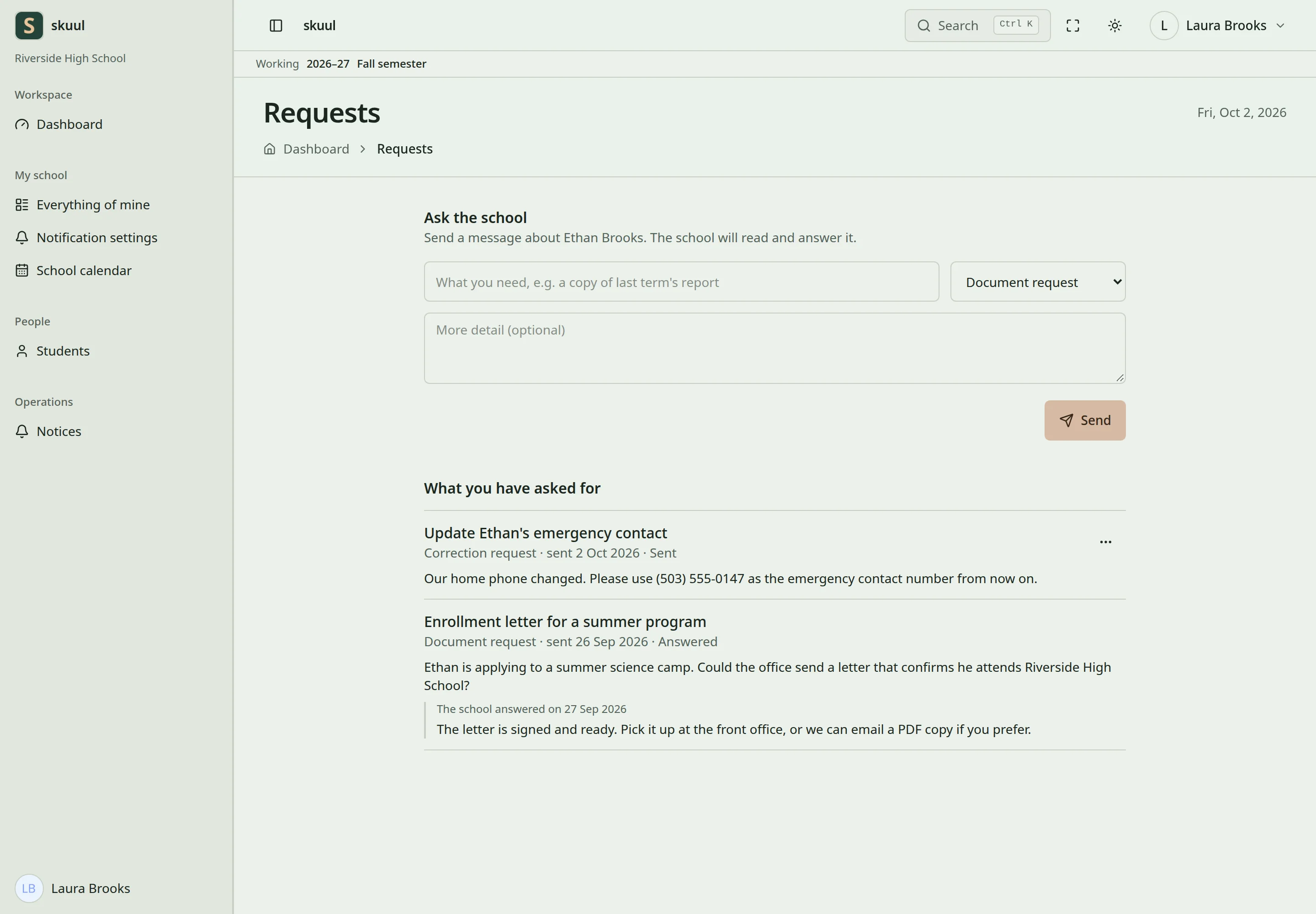
- Open Everything of mine, find the learner, and select Requests.
- Under Ask the school, enter What you need.
- Select Kind of request: Document request, Correction request, Appointment request, or Acknowledgement.
- Enter More detail (optional).
- Select Send.
The message Your request was sent to the school. shows. The request appears under What you have asked for, with its kind, date, and state.
| Field | Requirement |
|---|---|
| What you need | Required. Up to 255 characters. |
| Kind of request | Required. |
| More detail | Optional. Up to 2000 characters. |
You cannot send the same What you need again while the first request is open. The form says You already asked for this. The school has not answered yet.
For a correction, name the record, the date or term, what is wrong, and what is right. Example: "Term 1 attendance on 14 Sep 2026 shows Absent. Please check the signed register."
On the School calendar, Request this time opens the form with an appointment request filled in. An appointment request does not book the time. A document request does not issue a document.
Each family member sees only the requests they sent. A learner does not see their guardian's requests, and one guardian does not see another's.
Take back a request
- Under What you have asked for, open the ellipsis of the request.
- Select Take back, then confirm.
You can take back a request only while it is Sent or Being looked at. Only the person who sent it can take it back.
Request states
| State | Meaning |
|---|---|
| Sent | The school has not opened it. |
| Being looked at | Staff are working on it. |
| Answered | The school answered. The answer shows under the request. |
| Declined | The school will not do it. |
| Withdrawn | The family took it back, or the guardian link ended. |
Answered, Declined, and Withdrawn are final. When the school ends a guardian link, that guardian's open requests for the learner become Withdrawn.
Answer a request as staff
| Task | Campus permission |
|---|---|
| Read the inbox | read portal request |
| Change a request | answer portal request |
- Open Operations → Family requests.
- Filter by Status or Request type, if needed.
- Read the student, the family member, and the message.
- In Move to, select the next state.
- For Answered, enter Response, up to 2000 characters.
- Select Update request.
Answered needs a response. Declined does not, but explain the decision. The family sees the response on their Requests page.
If the family took the request back first, the inbox says The family took this request back. It cannot change now. If another staff member closed it first, the inbox says, for example, This request is already answered. It cannot change now. The first answer stays. Read it before you contact the family.
The inbox shows only requests for this campus. It stays open when the campus hides Requests from families, so staff can finish open requests.
Problems
| Problem | Action |
|---|---|
| The family has no Requests button | Check the guardian link, the Student and guardian portal tool, and the Requests family page. |
| The record did not change after an answer | Make the change in its own screen, such as attendance or the gradebook. |
| Take back is missing | The request is final. |
| The answer is refused | Enter a response for Answered. |
See guardian links, official documents, and portal access.