Payments, credit, refunds, and corrections
Record money only after the office confirms that it arrived. Take a payment from the invoice. Use the learner's Student account for credit, refunds, take-backs, waivers, and write-offs.
Access and amount rules
| Task | Campus permission |
|---|---|
| Read invoices and accounts | read fee invoice |
| Take a payment, or use held credit | update fee invoice |
| Take back a payment, give money back, waive, or write off | refund student payment |
Payment and adjustment amounts accept two decimal places, such as 1250.50. Invoice amounts are whole numbers. See invoice amount rules.
Record a payment
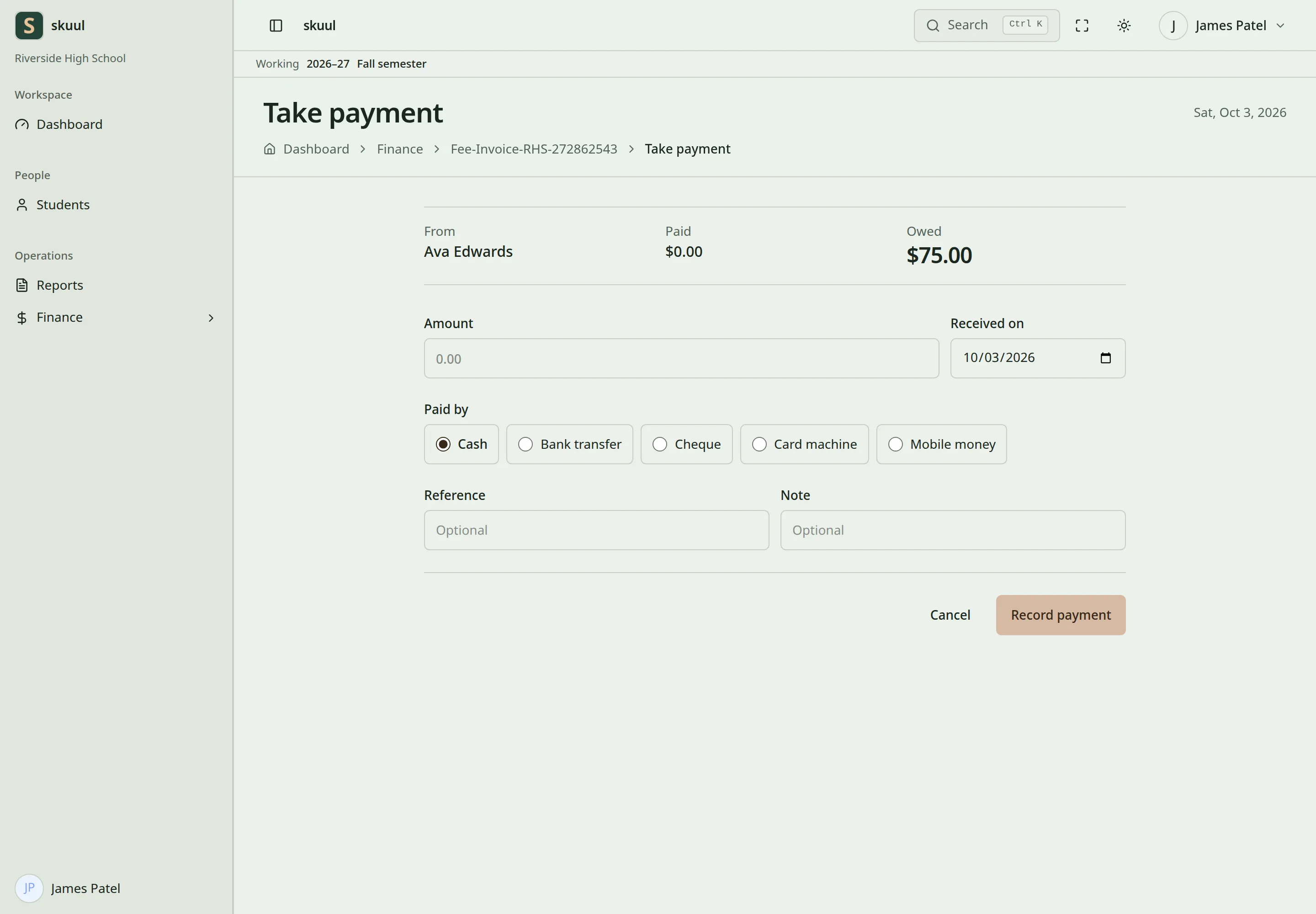
Record money received and review any credit left unallocated.
- Open the invoice and select Take payment.
- Check the learner under From, and what is Owed.
- Enter Amount.
- Check Received on. It shows today. A future date is refused.
- Under Paid by, select how the money came.
- Enter Reference. It is required for every method except Cash.
- Enter an optional Note.
- Select Record payment.
The invoice opens with the message Payment recorded. Money above what the invoice owes is held as credit, and the message names the amount. The invoice's Payments list shows the part of each payment used on this invoice. Select Receipt to print a receipt.
| Field | Requirement |
|---|---|
| Amount | From 0.01 to 100000000, with up to two decimal places. |
| Received on | Today or earlier. |
| Paid by | Cash, Bank transfer, Cheque, Card machine, or Mobile money. |
| Reference | Required except for Cash. Up to 100 characters. |
| Note | Optional. Up to 1000 characters. |
Cash goes to the cash account. The other methods go to the bank account. The method is what the cashier records. The app does not check it with a bank or provider. The family portal has no online payment.
A reference already used for a payment of this learner is refused, unless that payment was taken back. Letter case does not matter: ach-240104 matches ACH-240104. The message names the date of the earlier payment. Check it before you try again.
Split a payment across fees
Split across fees shows when the invoice owes more than one fee. Without a split, the payment clears the oldest fees first.
- Select Split across fees.
- Enter the amount for each fee. A blank fee gets nothing.
- Select Record payment.
The split cannot be more than the payment, or more than a fee owes. What the split leaves over is held as credit.
Example: an invoice owes 70.00 tuition and 30.00 materials. A payment of 120.00 without a split pays both and holds 20.00 as credit. With a split of 70.00 to tuition, 50.00 is held as credit.
Use held credit
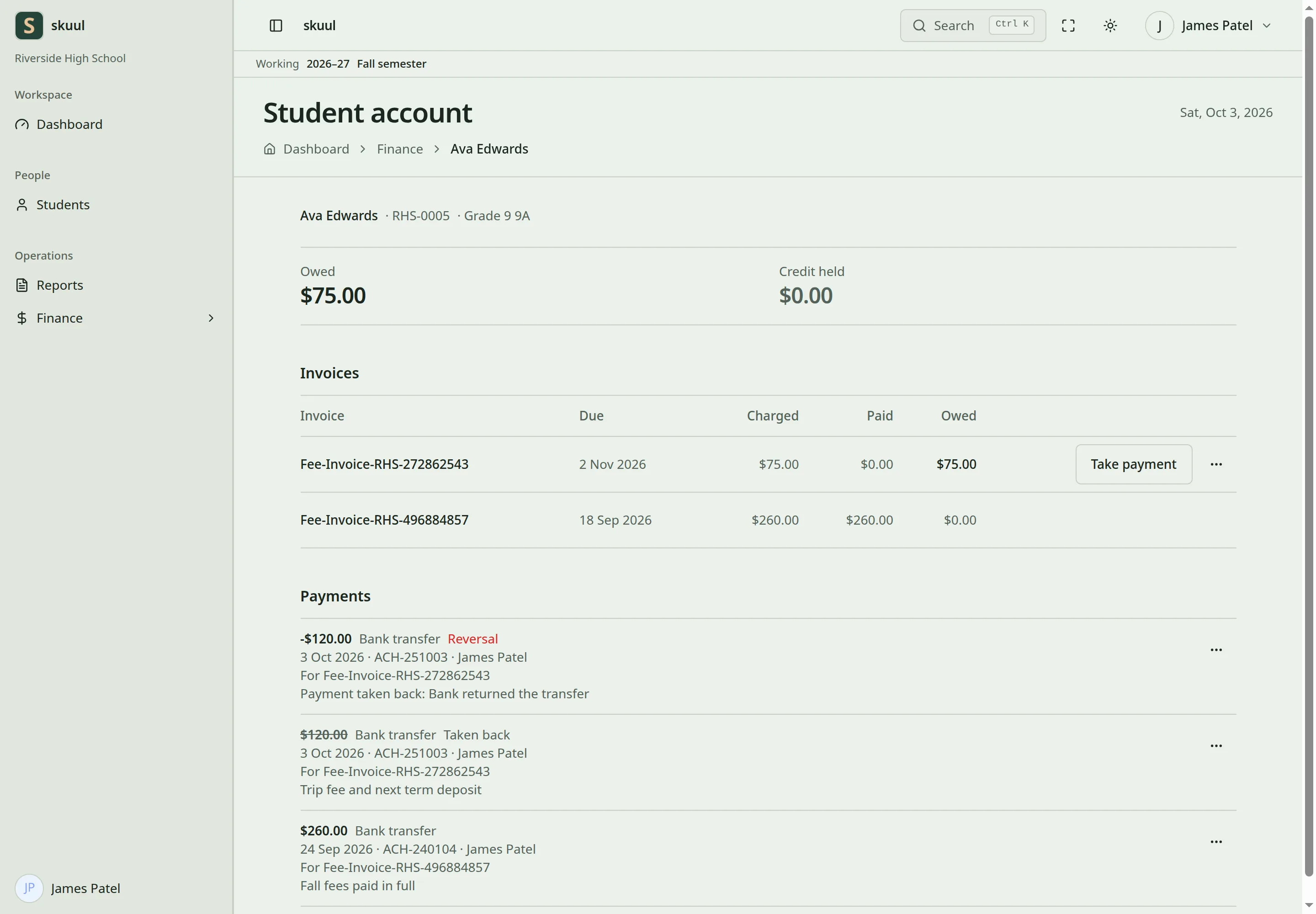
Open the invoice's ellipsis and select Student account. The account shows Owed, Credit held, the invoices, and the payments.
When the learner holds credit and owes money, select Use credit against fees. The message names the amount used. Using credit records no new money received.
Take back a payment
Take back a payment that was recorded by mistake, or that the bank returned.
- Open the learner's Student account.
- Open the ellipsis of the payment and select Take back.
- In Reason, enter 5 to 500 characters.
- Select Take back.
The payment stays in the list, struck through and marked Taken back. A Reversal row shows the reason, and the fees are owed again. A payment can be taken back once. Taking back a payment does not give money to the family. Use Give money back for that.
Give money back
You can give back held credit only.
- On the Student account, select Give money back.
- Enter Amount. The heading shows the most you can give back.
- Select Paid out by, and enter Reference when the method needs one.
- In Reason, enter 5 to 500 characters.
- Select Record the refund, then confirm.
To give back money already used on fees, take back that payment first. Its money then becomes credit.
Waive or write off a fee
- On the Student account, open the ellipsis of the invoice.
- Select Waive or write off.
- In Fee, select the fee. Each fee shows what it still owes.
- Enter Amount.
- In Kind, select Waiver or scholarship, or Write-off, cannot collect.
- In Reason, enter 5 to 500 characters.
- Select Take it off, then confirm.
The amount cannot be more than the fee still owes. The invoice shows the new waiver, and the learner owes less. A waiver or write-off is not money received.
Problems
| Problem | Action |
|---|---|
| The invoice has no Take payment | It is paid. Check the Student account for held credit. |
| The reference is required | Enter the cheque number or the transfer, card, or mobile money reference. |
| The reference was already used | Open the earlier payment. Do not change the reference to get past the check. |
| The split is refused | Make the split no more than the payment, and no more than each fee owes. |
| The date is refused | Use today or an earlier date in an open financial period. |
| The refund is refused | Give back no more than the credit held. |
After each correction, check the invoice, the learner's account, and the ledger reports. See payment extensions before you turn on a provider.